Costco Contract Guide

Heavenly Greens — Sales Rep Quick Reference

0. Pre-Flight 1. Open Form 2. Fill Details 3. Review Draft 4. Send 5. Member Signs 6. You Sign

Quick Navigation

  1. Before You Start — pre-flight checklist on the contact record
  2. Open the Contract Form — find the form in Contacts or Conversations
  3. Fill Out the Form — products, quantities, member info
  4. Review the Draft Contract — rename, check fields, set signing order
  5. Send for Signature — email/SMS or in-person links
  6. Member Signs, Then You Sign — electronic signatures
  7. Confirm Completion — verify everything landed
  8. Editing Contact Fields — fix info before or after
  9. After the Contract — Job Auth, Job Completed, Payments
  10. Change Orders — scope changes after signing
  11. If Something Goes Wrong — common issues + fixes

Before You Start — Pre-Flight Checklist

These four fields must be on the member's Contact record before you open the form. If they're missing, the contract will still build, but the system will fire warnings and Costco-side reporting will not match up.

1. Costco Lead #

The lead number from the CENTAH email. This is what ties the contract to the Costco opportunity.

Contact Profile → custom field "Costco Lead #"

2. Costco Membership #

The member's Costco membership number. Required for the Shop Card reward calculation to print correctly on the contract.

Contact Profile → custom field "Membership #"

3. Your HIS # (Registration #)

Your Costco-registered sales rep number. Lives on your user record — should auto-populate, but verify it's on the contact.

Auto-filled from your AGM user account

4. Member 65+ Status

Critical for cancellation window. Under 65: 3-business-day cancellation. 65 or older: 5-business-day cancellation. California law — get it right.

Contact Profile → custom field "Over 65"
Quick tip: Pull the CENTAH email up before you start. Lead # and Membership # both live there. Copy them into the contact, then open the form.
One blocker that will stop the contract cold: If your rep email on the contact record is blank or pointing to a decommissioned mailbox, the system will refuse to send the contract and alert the office. Make sure the contact is assigned to you with your active @heavenlygreens.com address.

Step 1: Open the Contract Form

The appointment is confirmed. Time to start the contract.

You'll get an email or SMS when it's time to start

When an appointment is confirmed, you'll receive a notification. That's your cue to open the contract form.
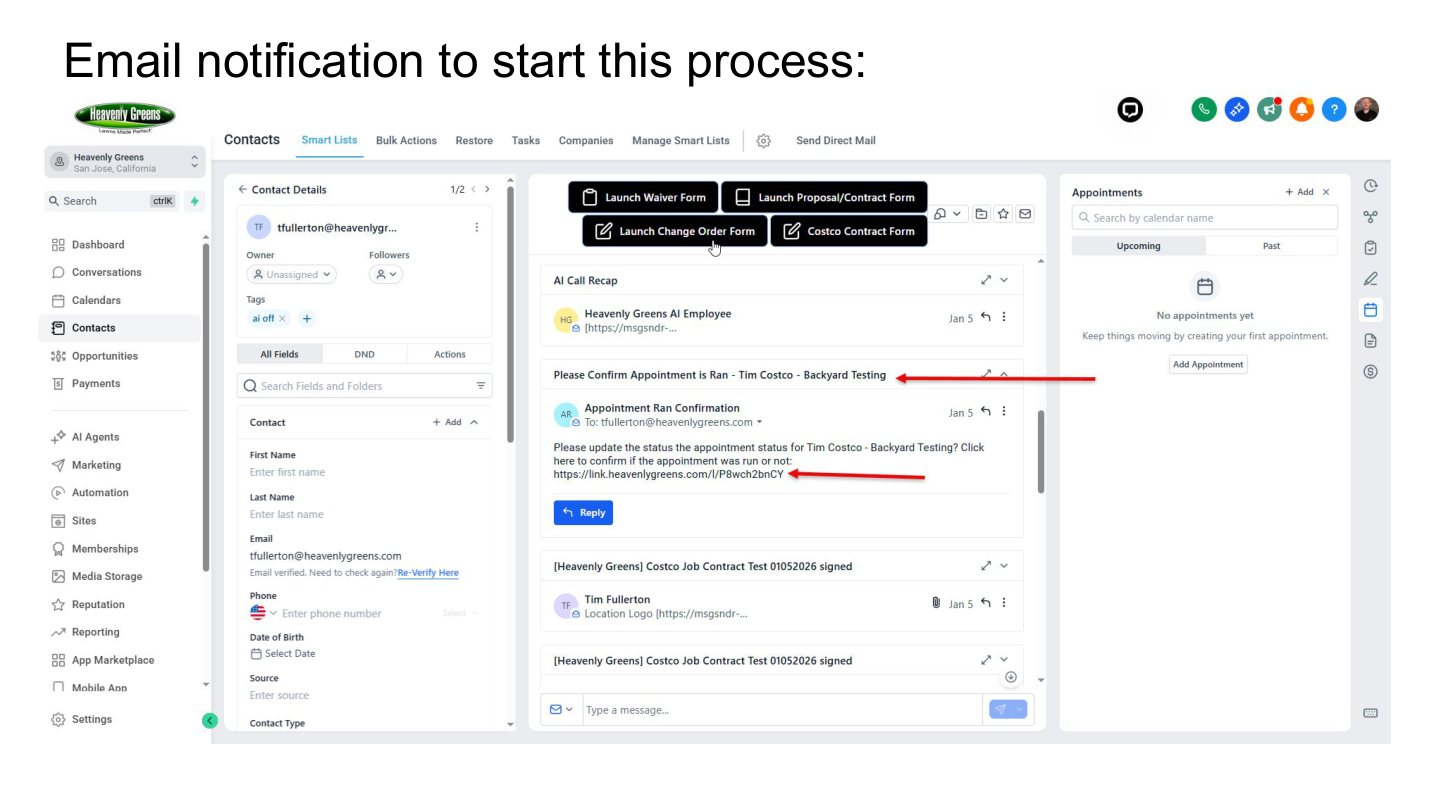
Email notification to start contract process

SMS notification

You may also receive an SMS message as a trigger.
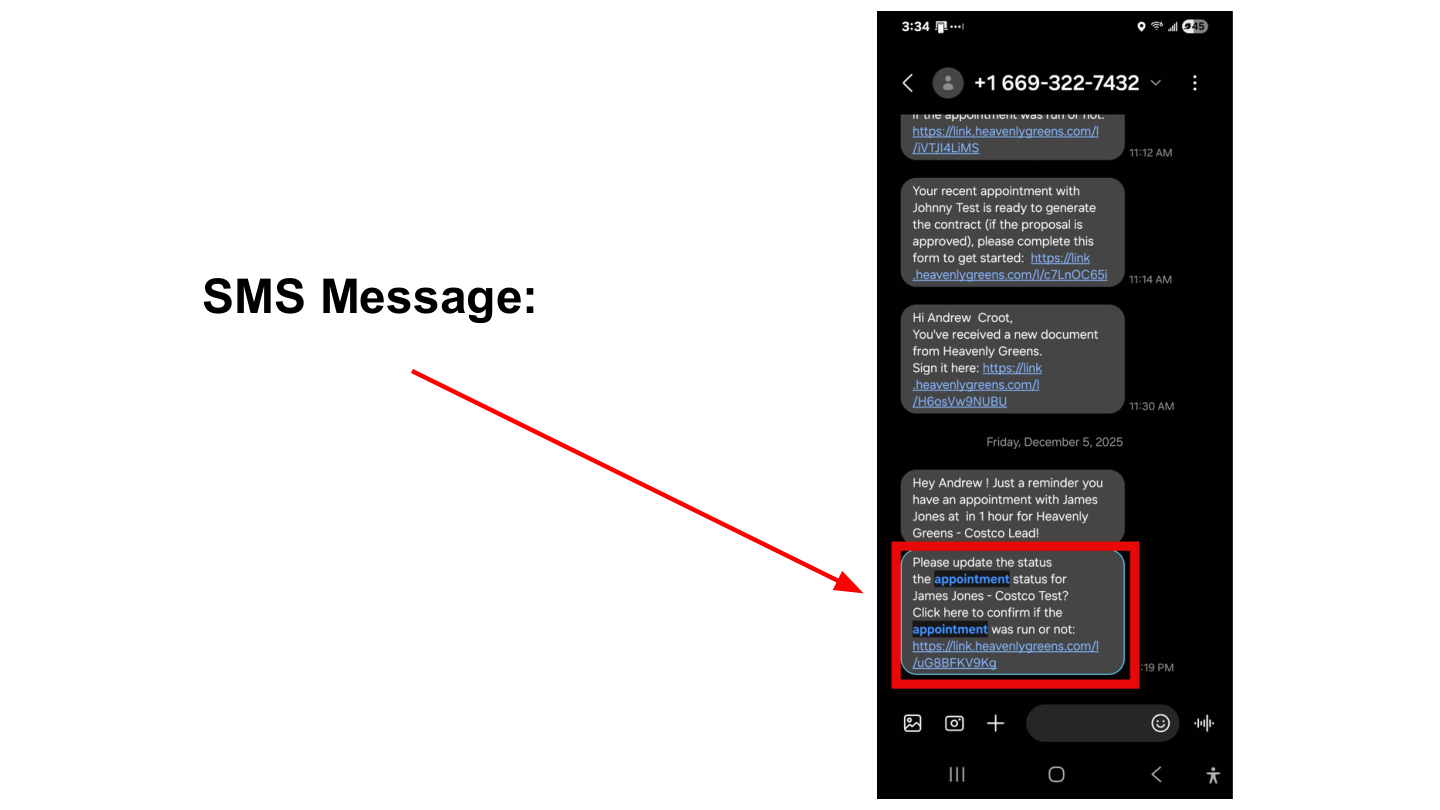
SMS notification

Option A: Open from Contacts

Go to Contacts → find the member → click their profile → click "Costco Contract Form" button.

Look for the green "Costco Contract Form" button at the top of the contact profile.
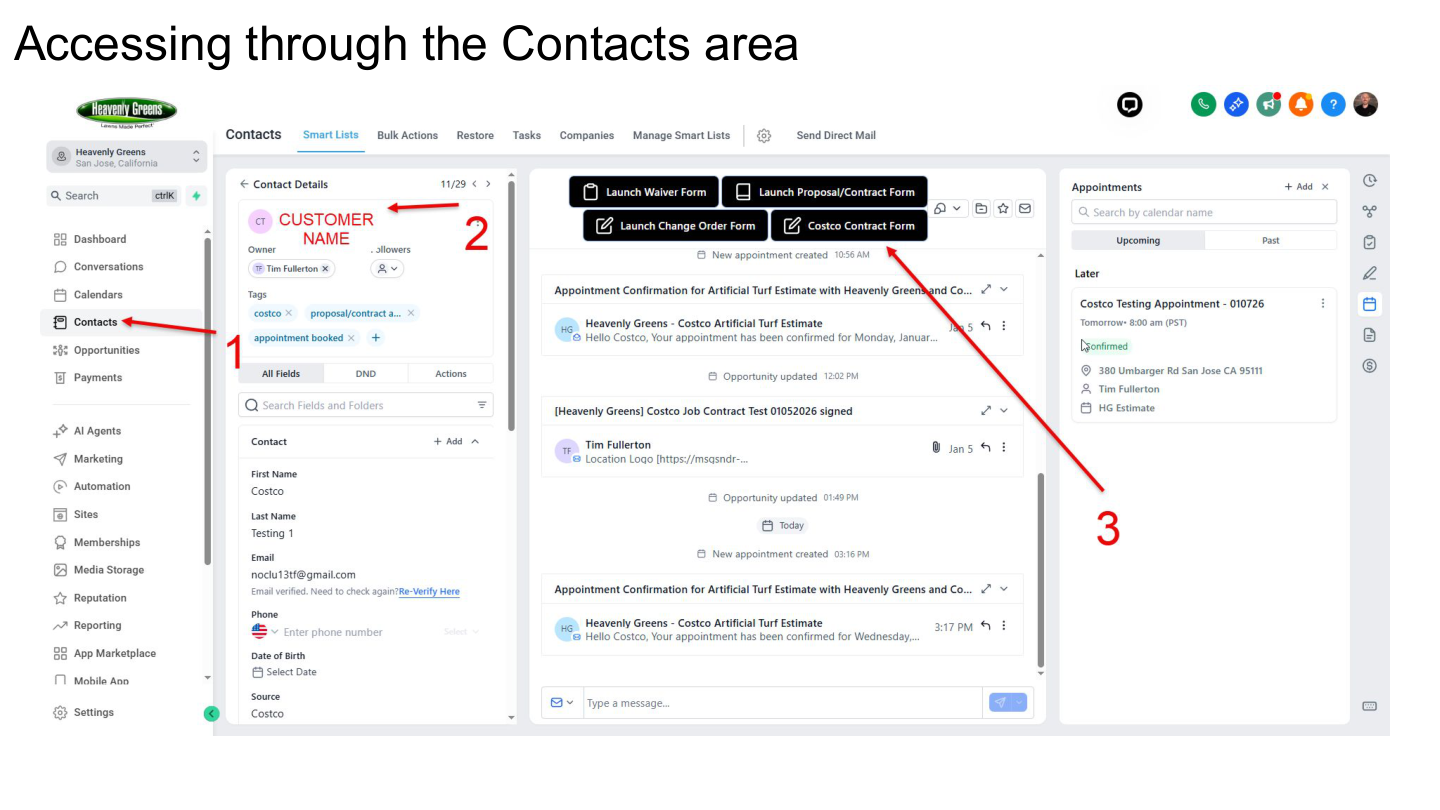
Accessing contract form through Contacts area

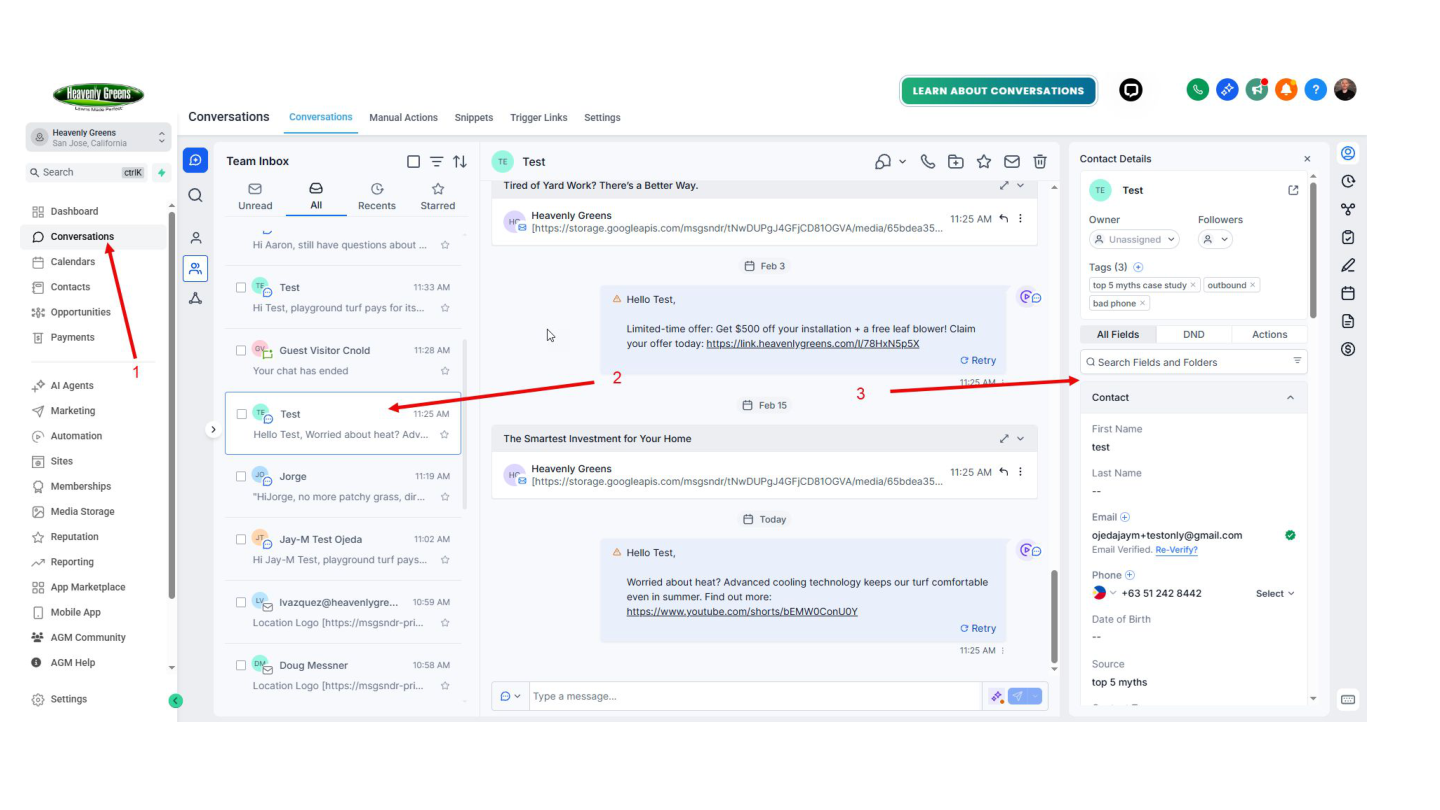
Option B: Open from Conversations

Go to Conversations → find the member's conversation → click the form button.

Both options get you to the same form. Use whichever is faster.
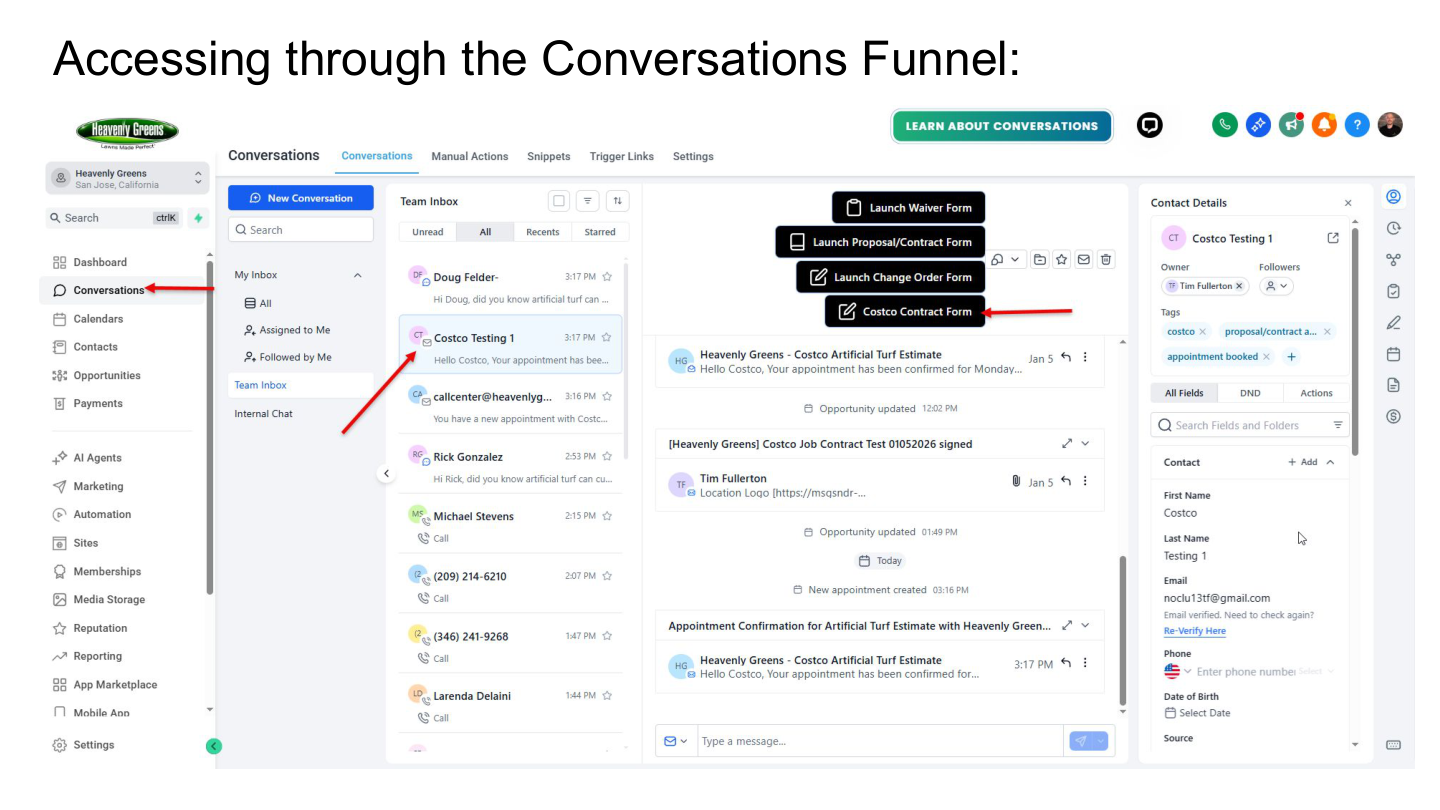
Accessing contract form through Conversations

Step 2: Fill Out the Form

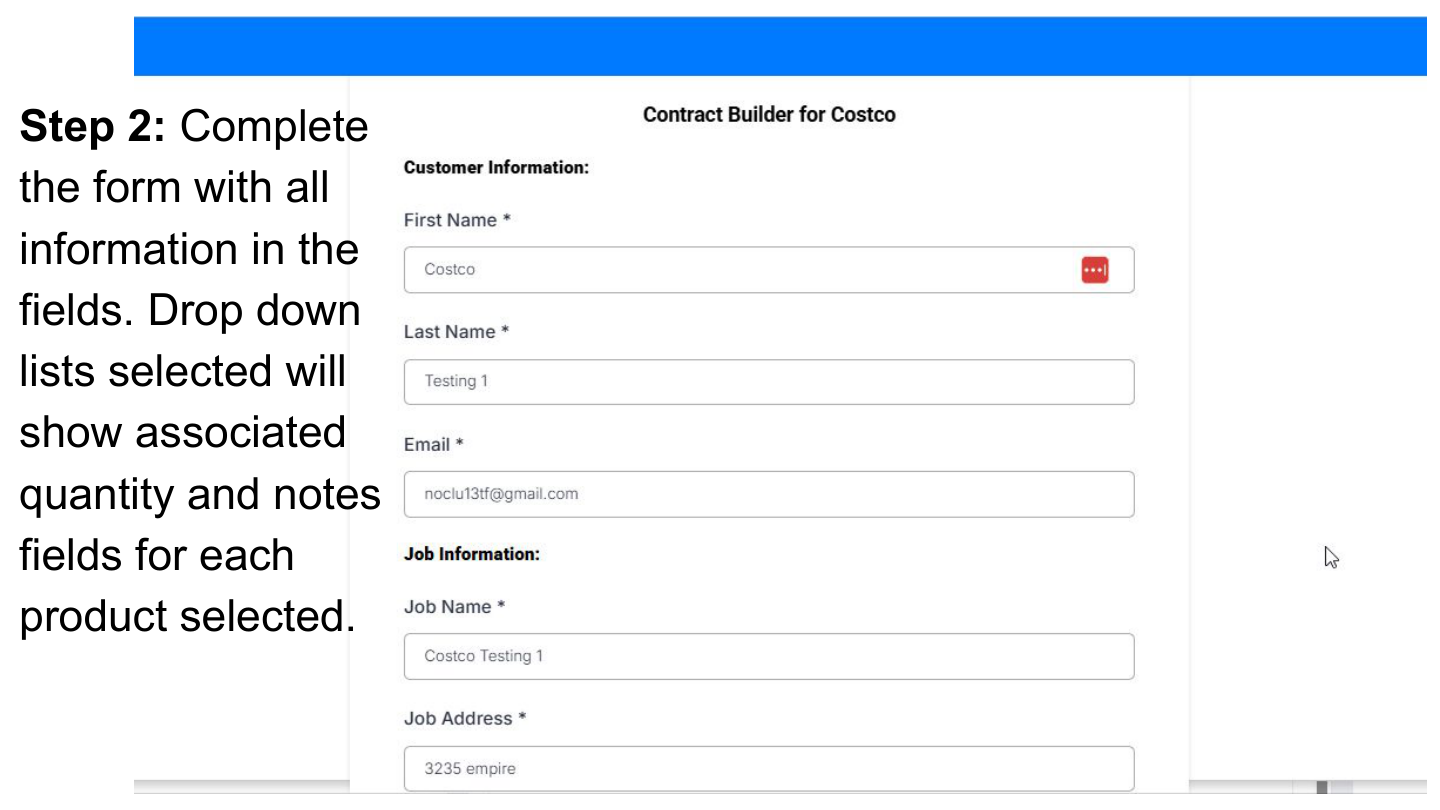
Enter all member and job details. Dropdowns will show quantity and notes fields automatically.

Complete every field

Fill in all member info and select products from the dropdown lists. When you pick a product, the quantity and notes fields appear automatically.

Completing the contract form

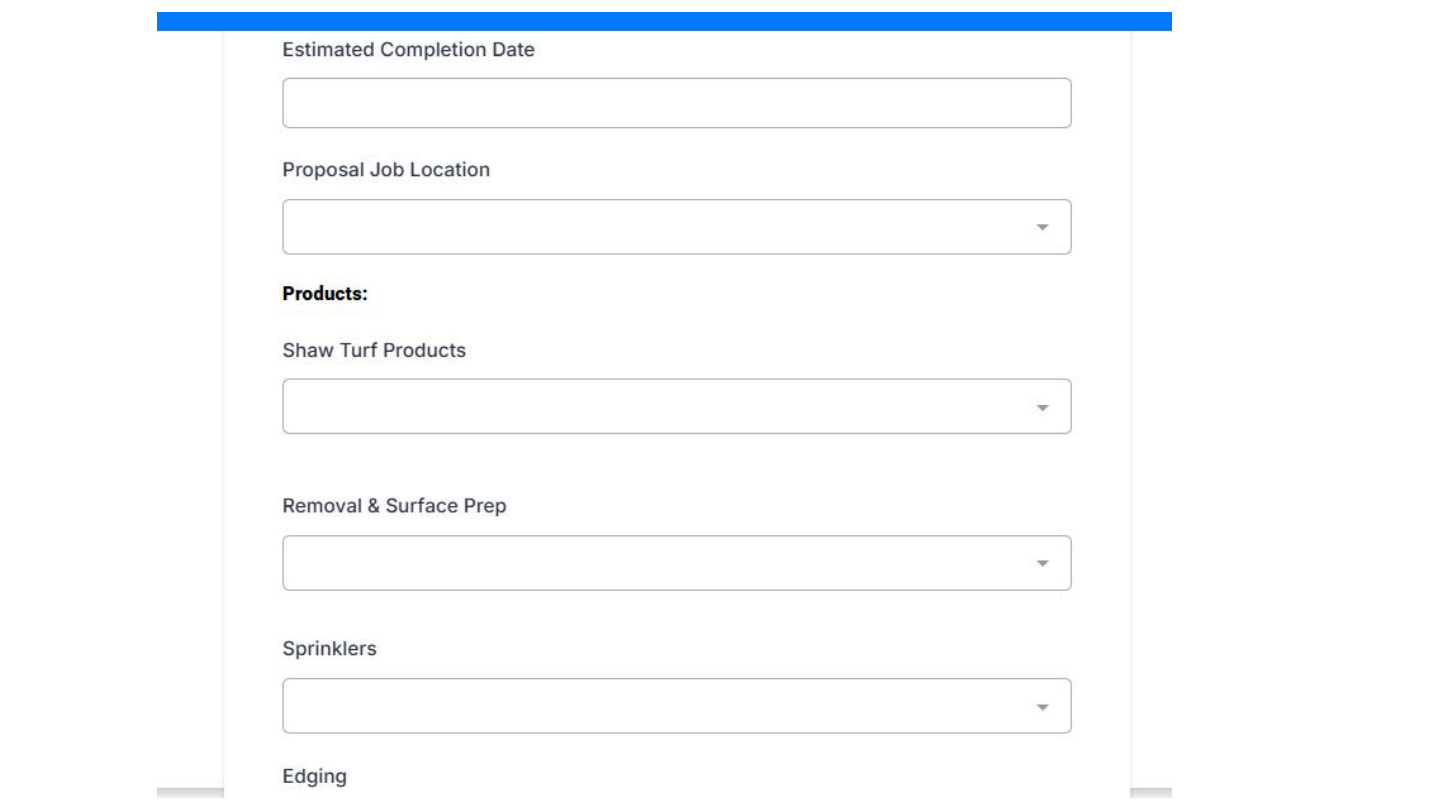
Product selection detail

Each product dropdown shows associated fields. Fill in all quantities and notes for every product selected.

Product selection details
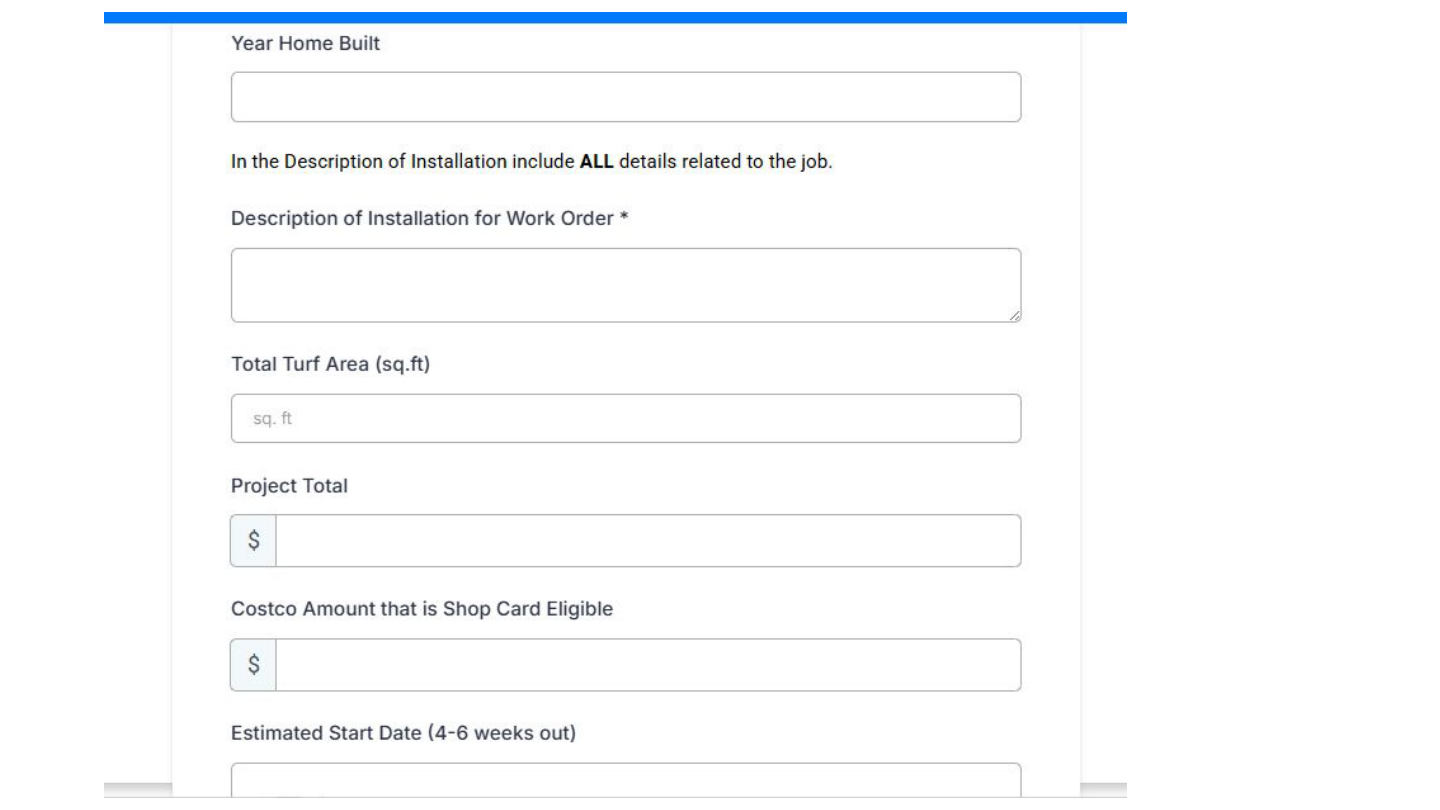
Additional form fields
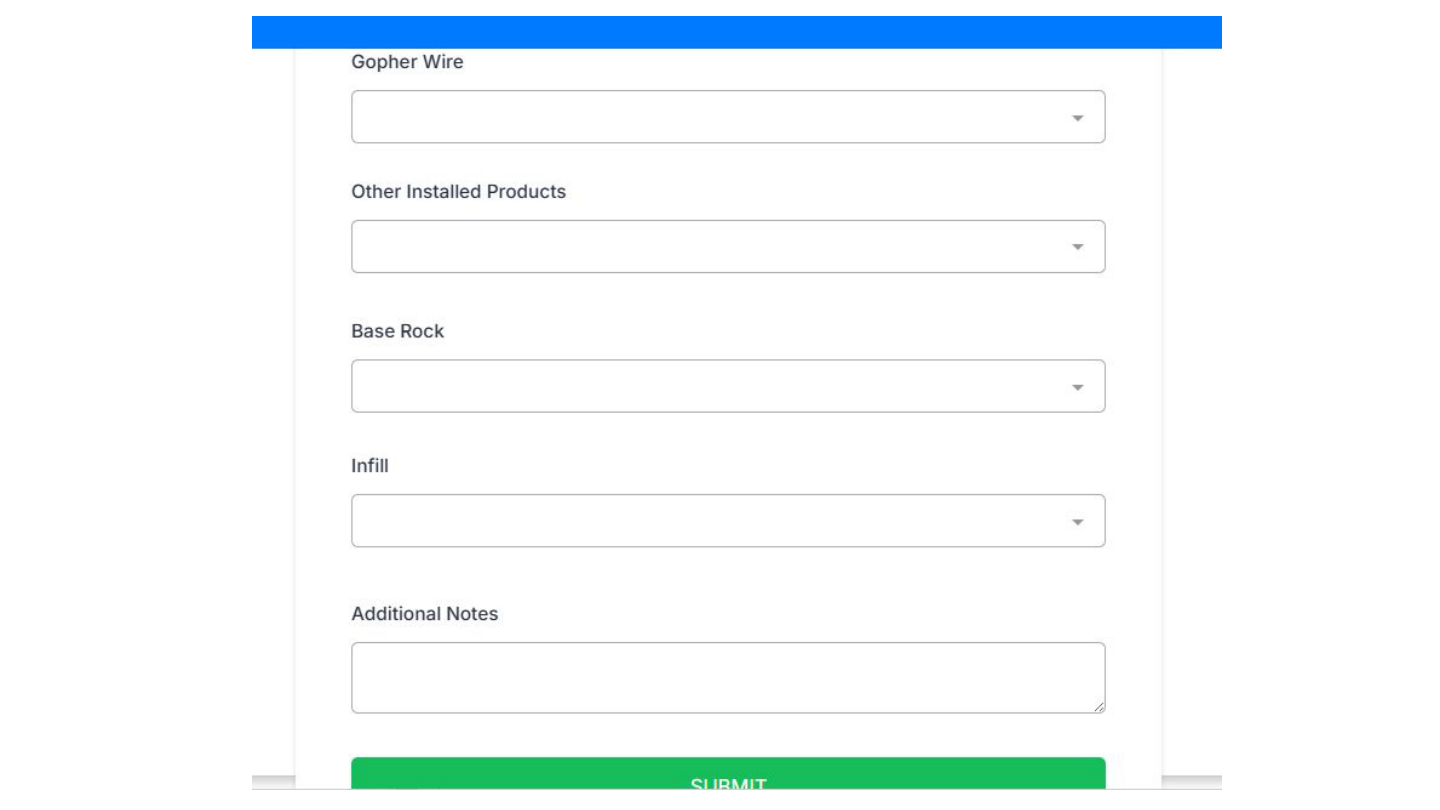
Form fields continued

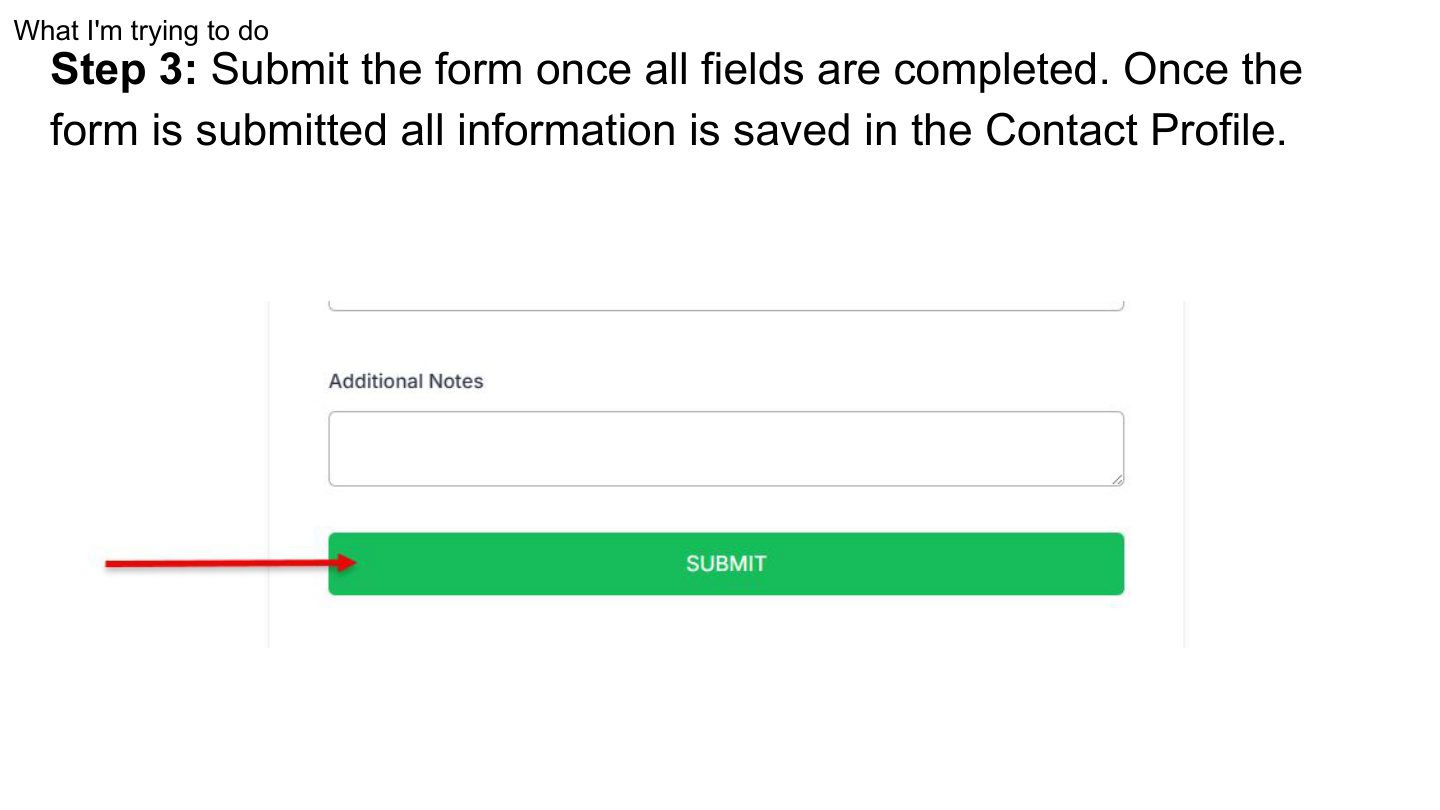
Submit the form

Once all fields are completed, hit Submit. All information is automatically saved to the member's Contact Profile.

You can always go back and edit contact fields later if needed.
What happens behind the scenes: The moment you hit submit, the system mints a unique job number (HGC-XXXXX) and stamps it on the contact record. That's your reference for the rest of the deal. If you resubmit the form for any reason, the same job number is reused — no duplicates.
Submit the form

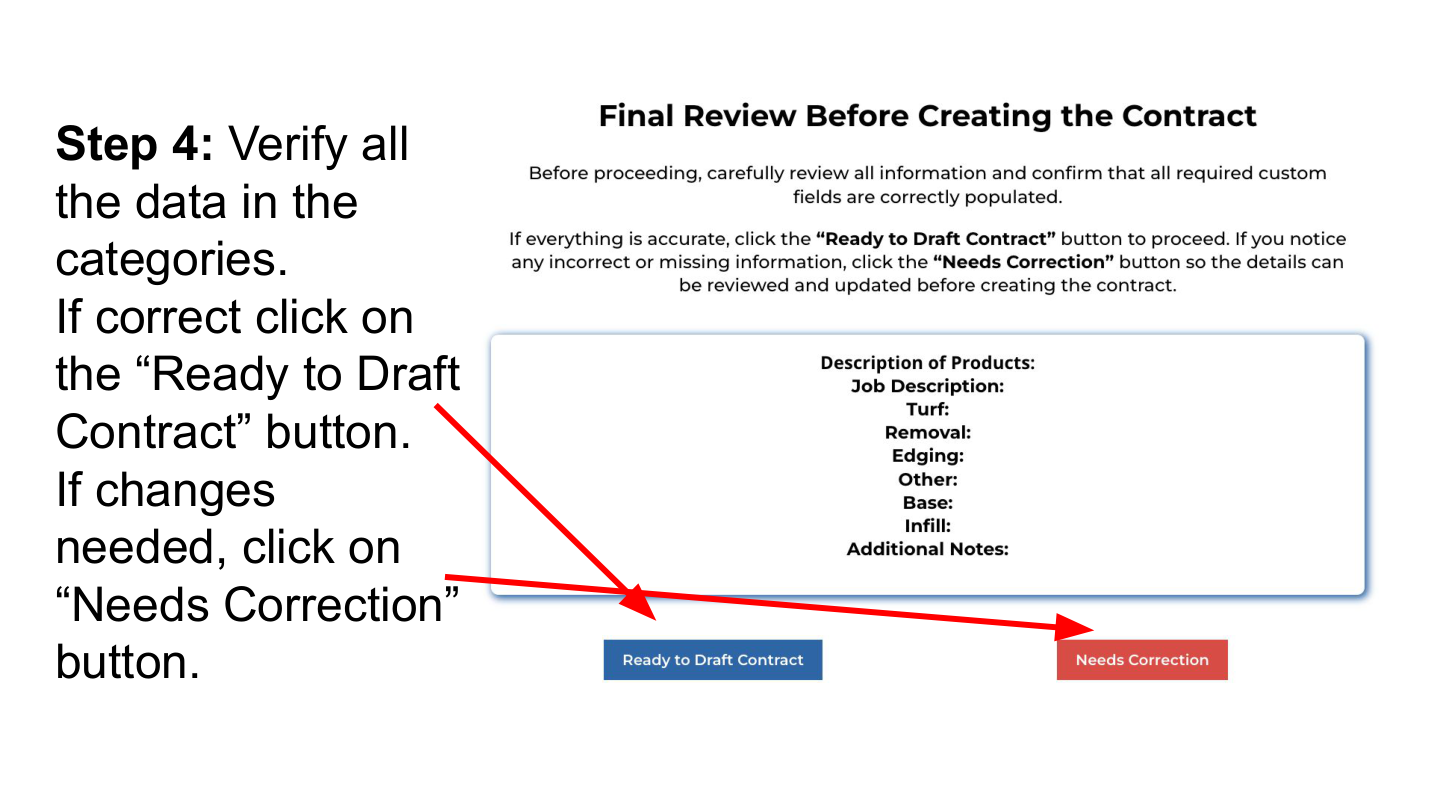
Verify the data before drafting

After submitting, review all the data in each category:

  • If everything is correct → click "Ready to Draft Contract"
  • If something needs fixing → click "Needs Correction"
Verify data - Ready to Draft or Needs Correction

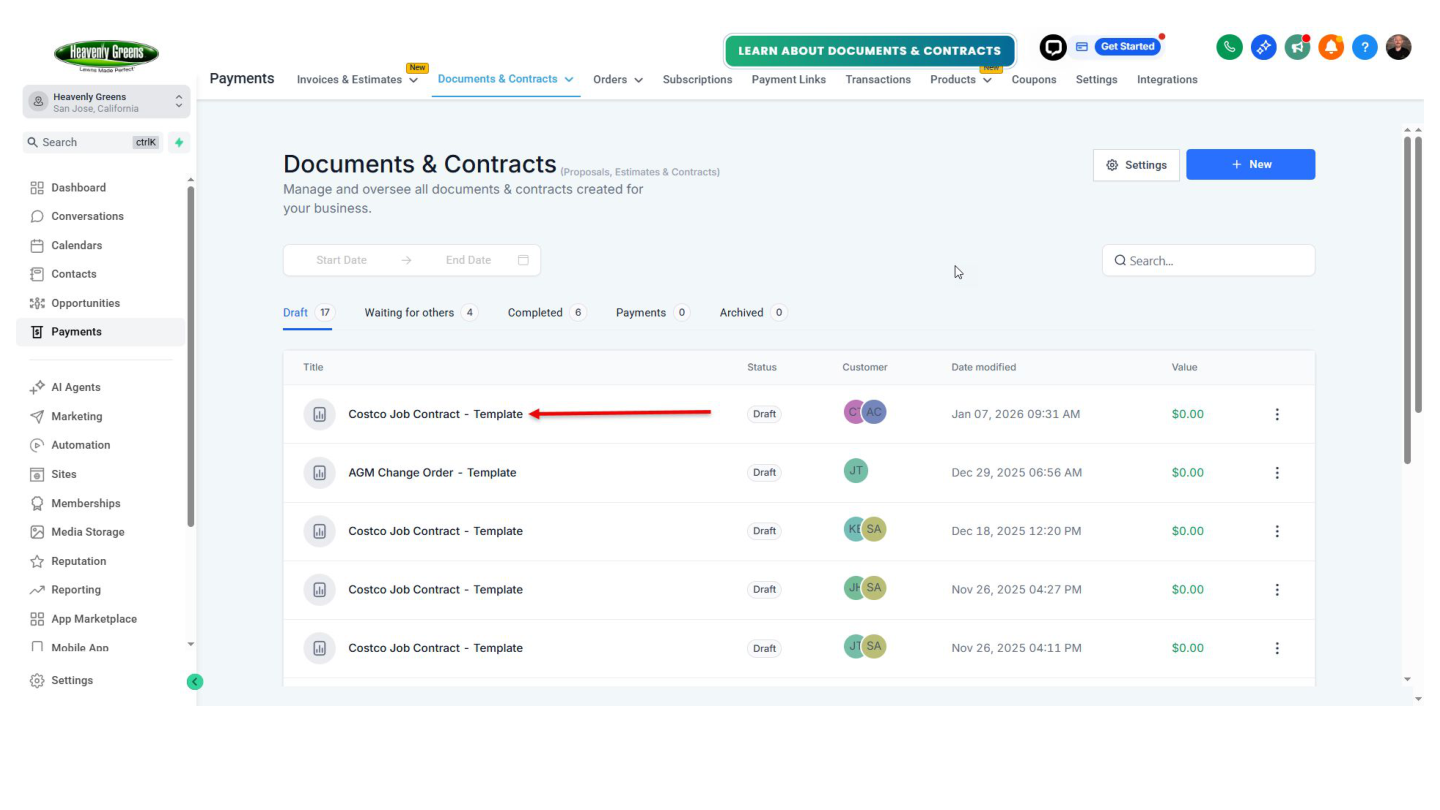
Confirm the right document

The document will be called "Costco Job Contract - Template". Verify the member is linked to the document you're opening.

Document name confirmation
Contract template view

Step 3: Review the Draft Contract

This is the most important step. Check everything before the member sees it.

3a. Rename the document

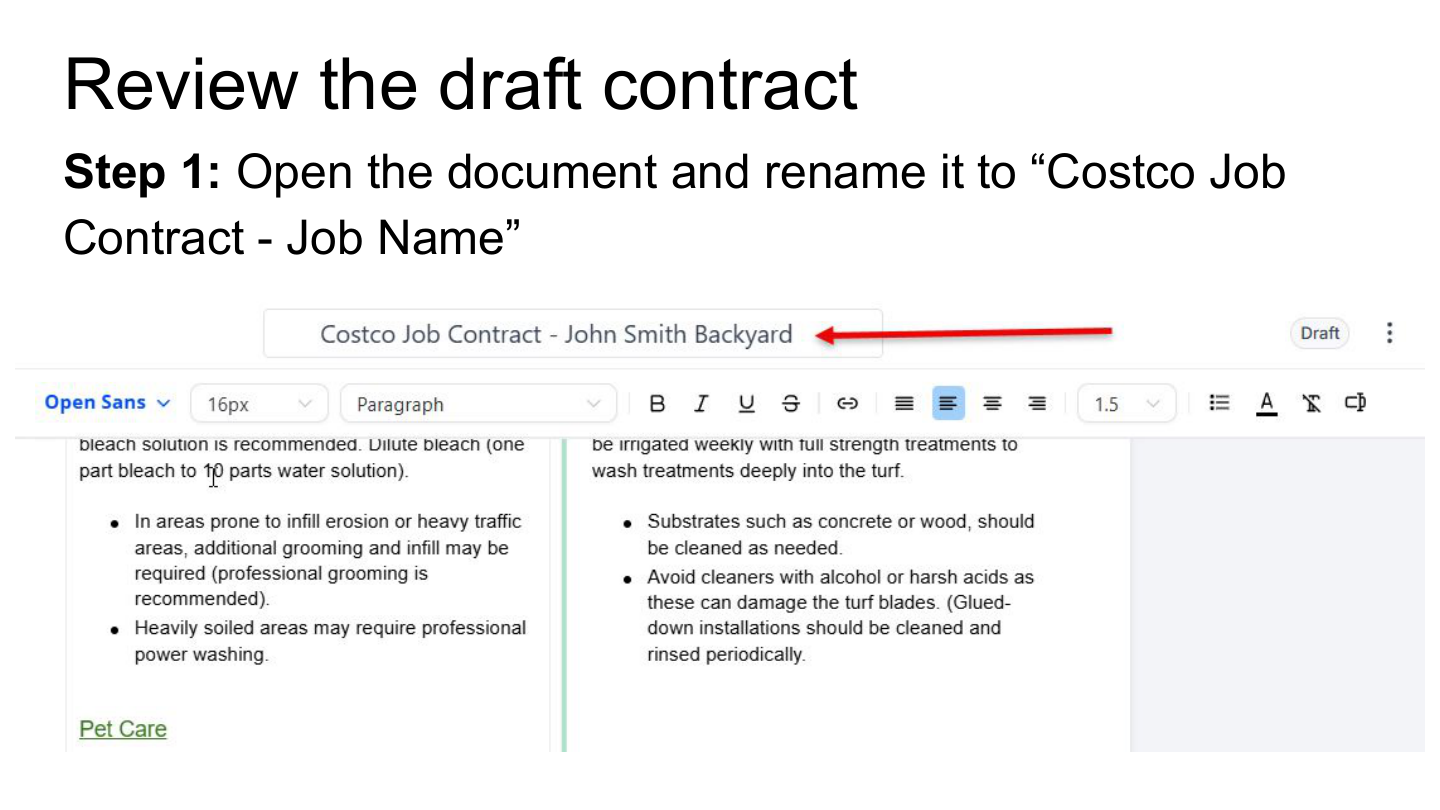
Open the contract and rename it from "Costco Job Contract - Template" to:

"Costco Job Contract - [Member Name / Job Name]"

Rename the contract document

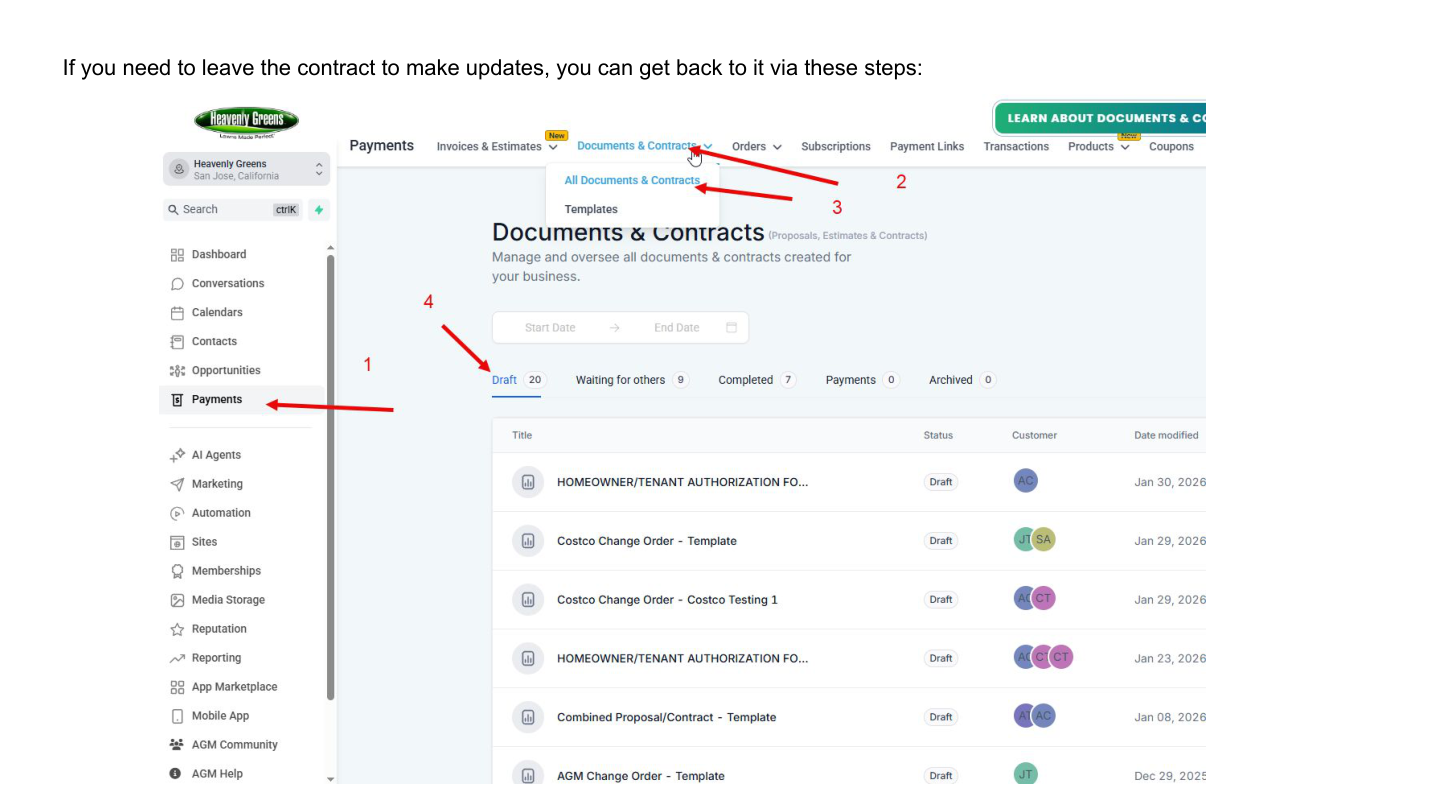
Need to leave and come back?

If you need to step away from the contract to make updates, here's how to get back to it:

How to get back to the contract

3b. Check all fields populated correctly

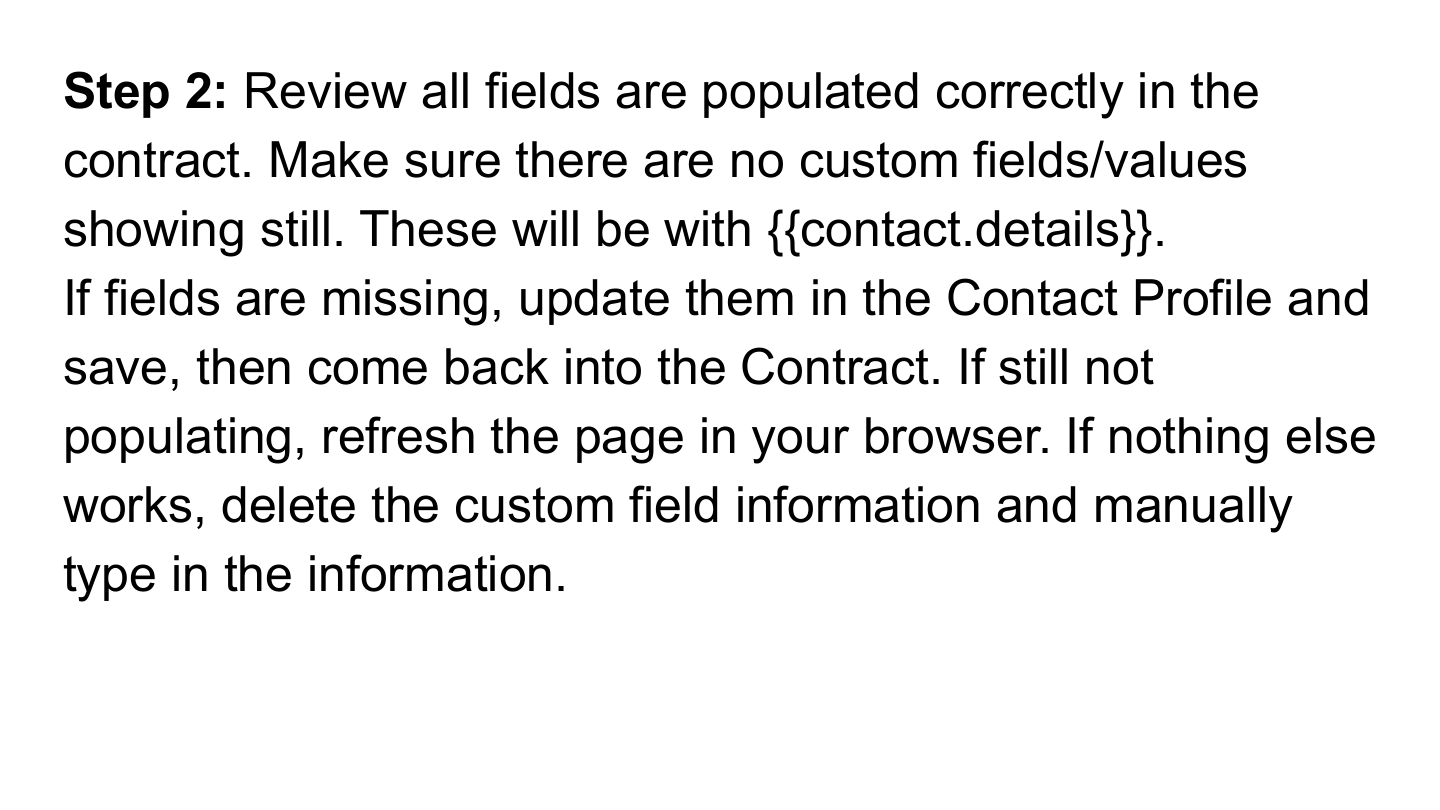
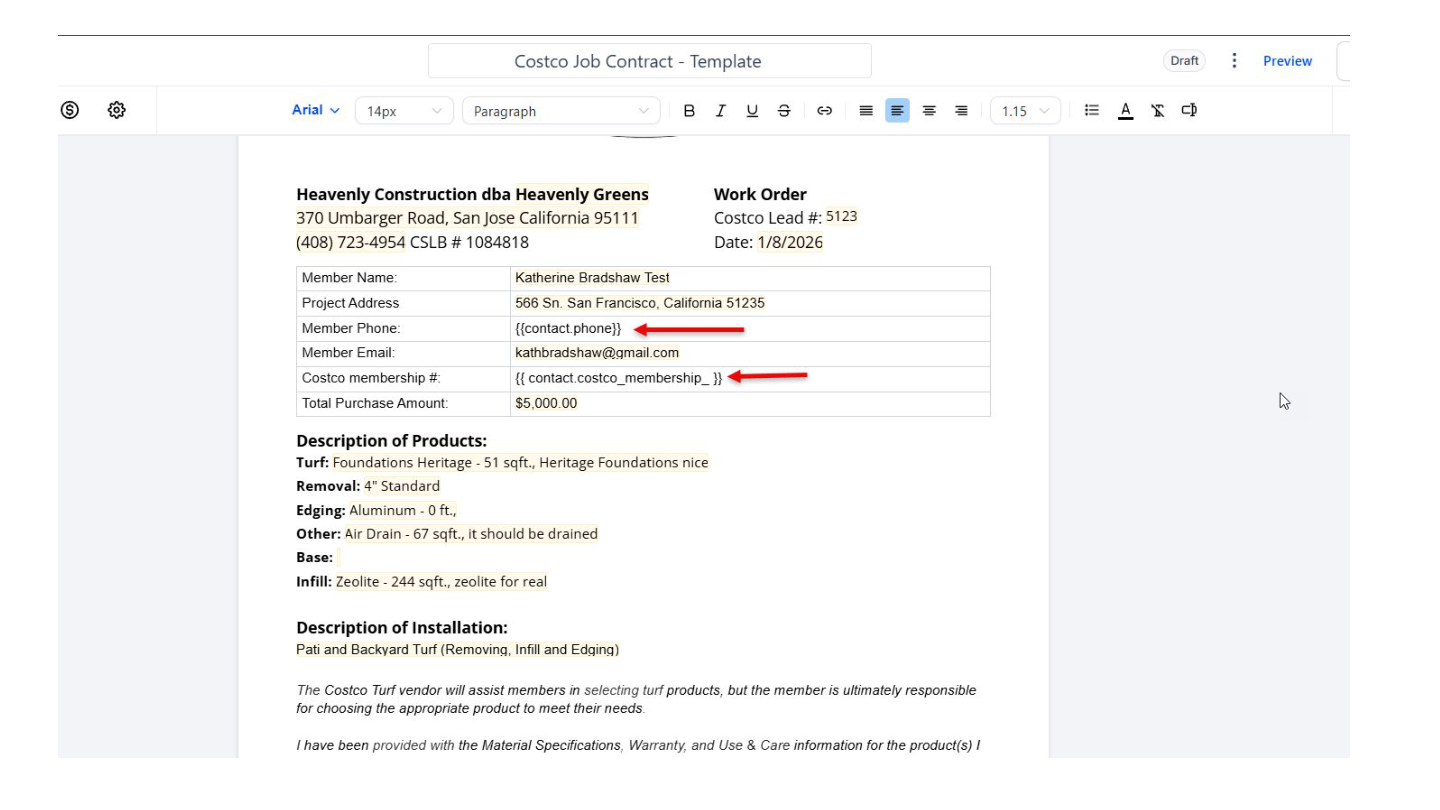
Scan the entire contract. If you see anything like {{contact.first_name}} or {{contact.details}}, that field didn't pull in.

Fix it: Update the field in the Contact Profile → Save → Come back to the contract → Refresh your browser. If it still won't populate, delete the placeholder and type the info manually.
Review fields instruction
Fields populated example

3c. Set the signing order

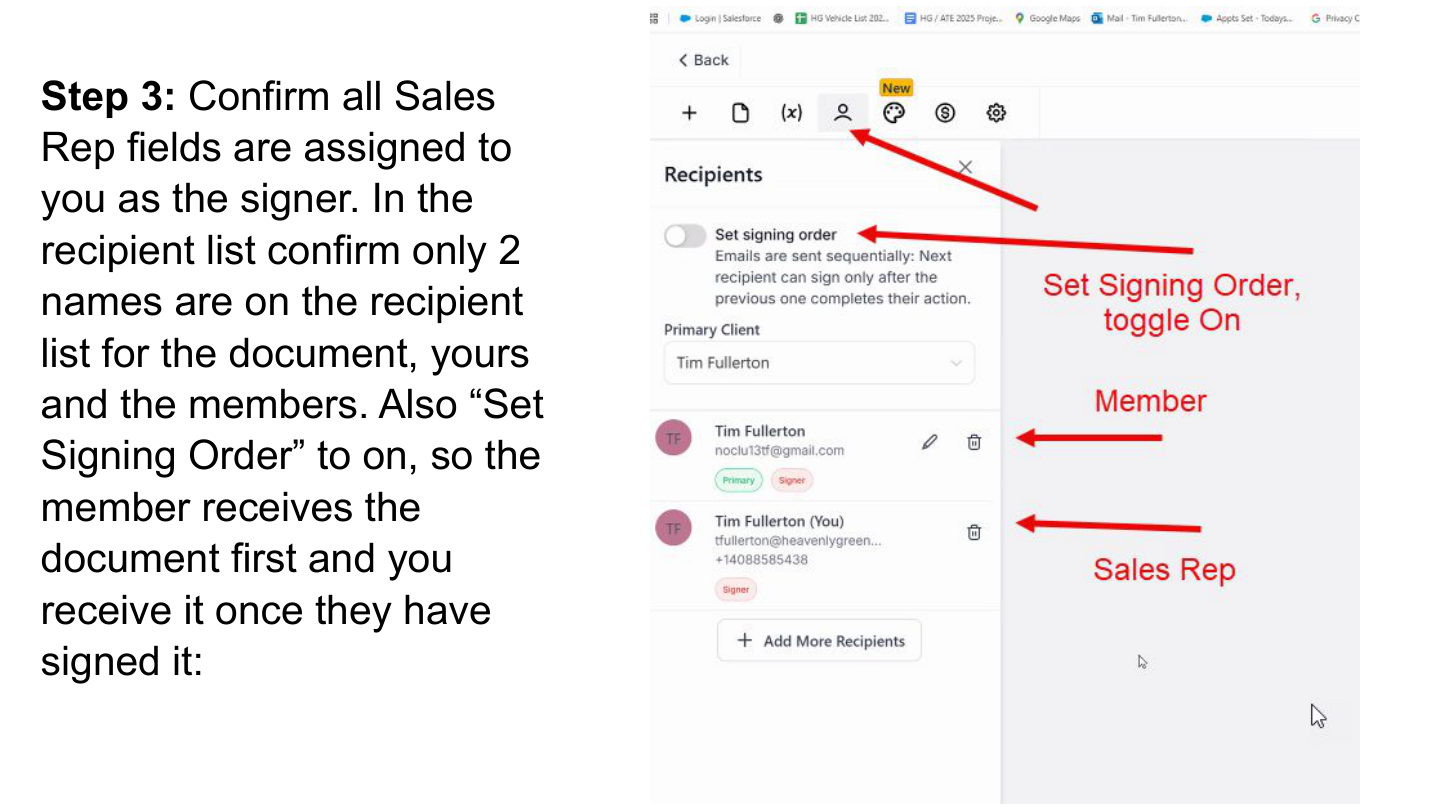
This is critical. In the recipient list:

  • Confirm only 2 names are listed: the member and you
  • Turn on "Set Signing Order" — member receives the document first, you receive it after they sign
Don't skip this. If signing order isn't set, both parties get the document at the same time and the member could see your signature before they've reviewed it.
Set signing order - recipient list

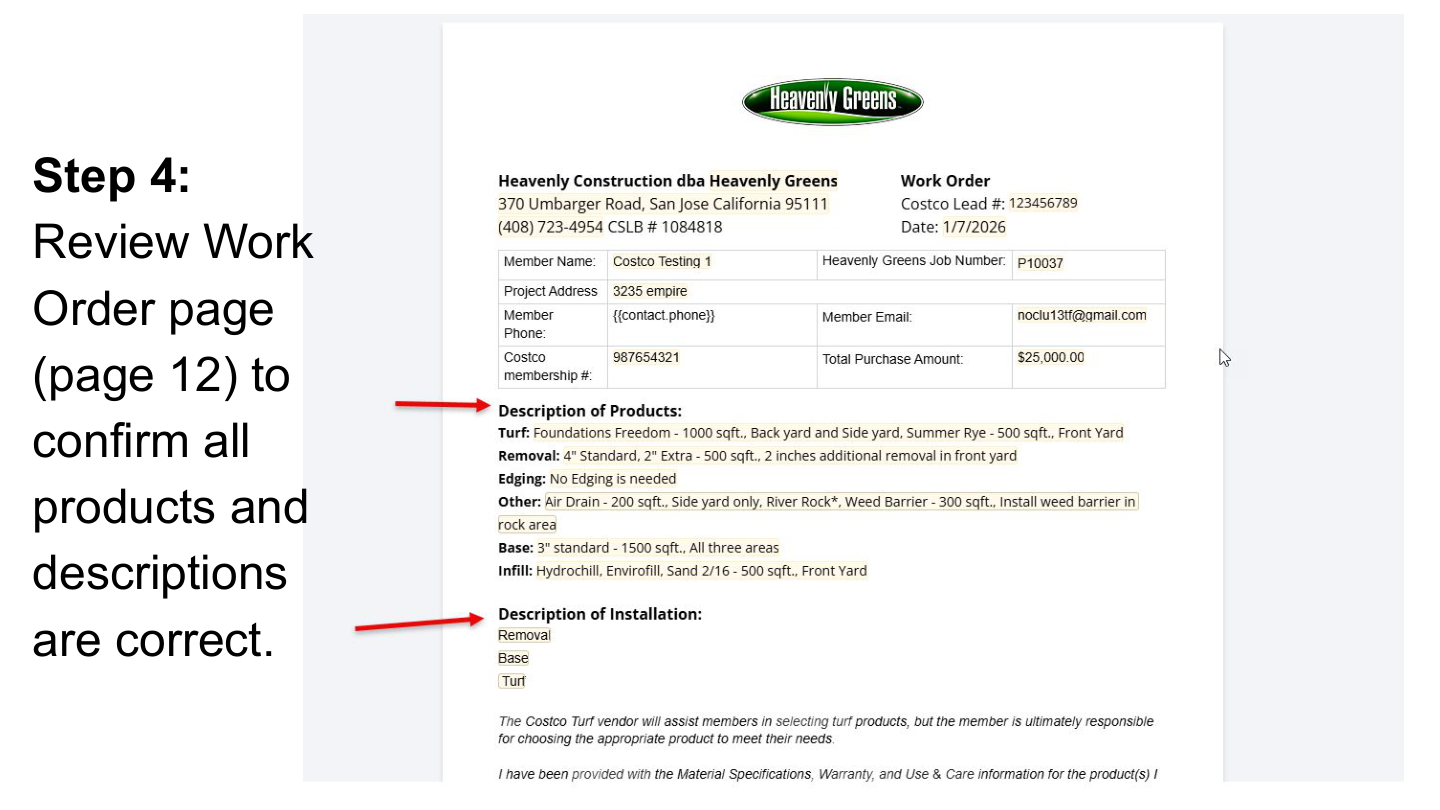
3d. Review the Work Order (Page 12)

Scroll to page 12 and confirm all products and descriptions match what you quoted to the member.

Review Work Order page 12

3e. Save the contract

Click Save at the top right corner. The system also auto-saves, but always click Save before sending.

Save the contract

Step 4: Send for Signature

Contract reviewed and saved. Time to get it signed.

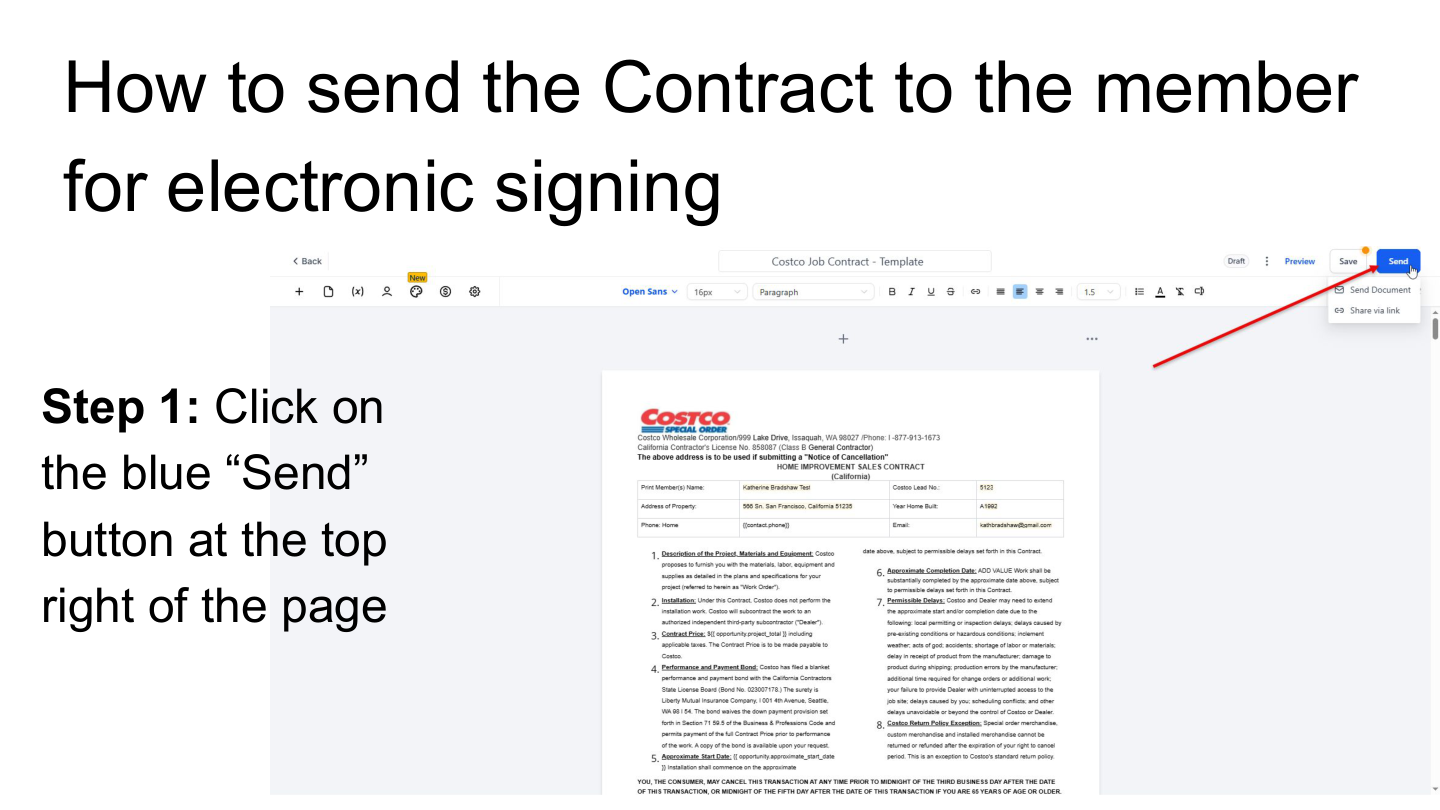
Click the blue "Send" button

It's at the top right of the page. You'll get two options for how to send.

Click Send button

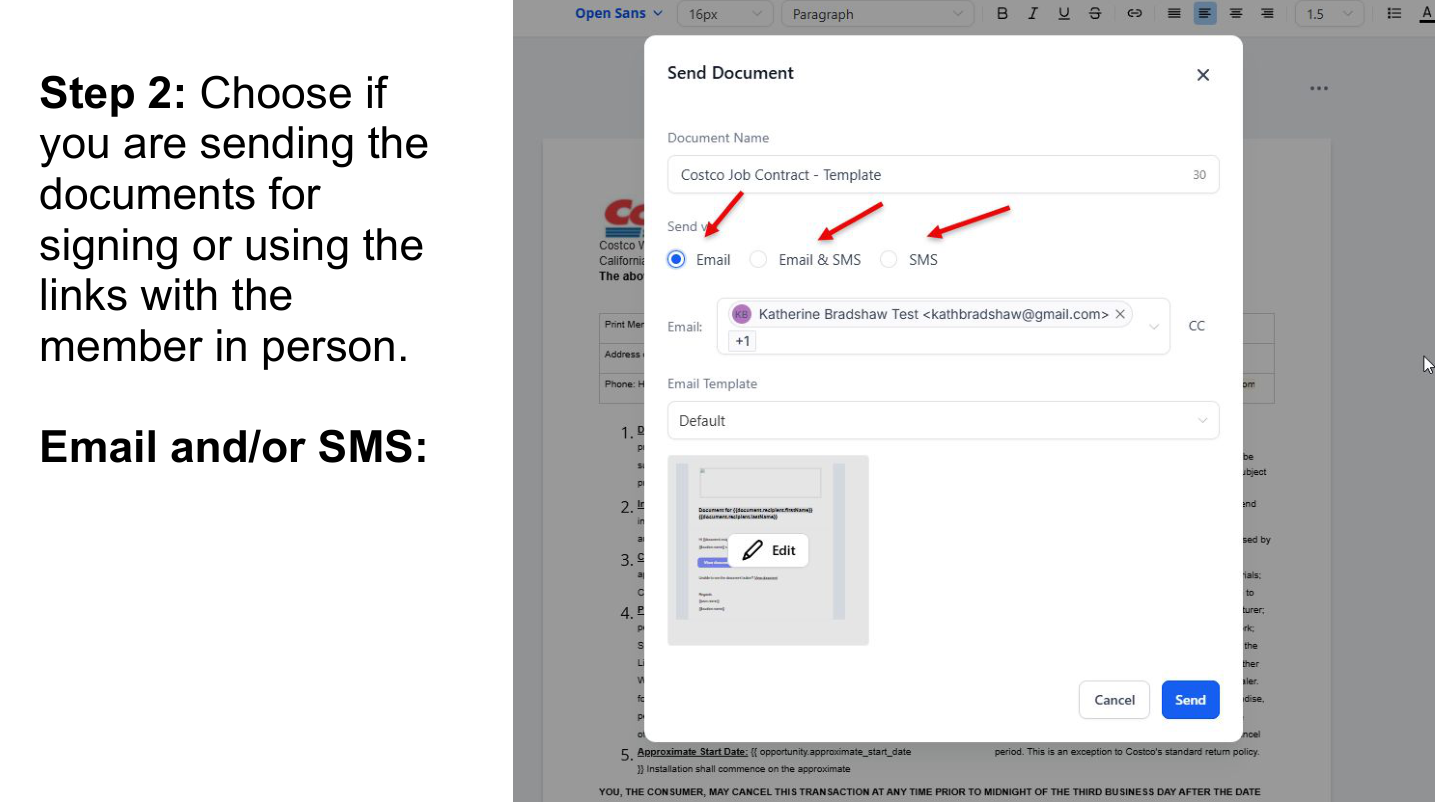
Option A: Send via Email / SMS (Remote)

Choose this when the member has left the appointment or you're closing remotely. The member gets a link to review and sign on their own device.

Send via email or SMS

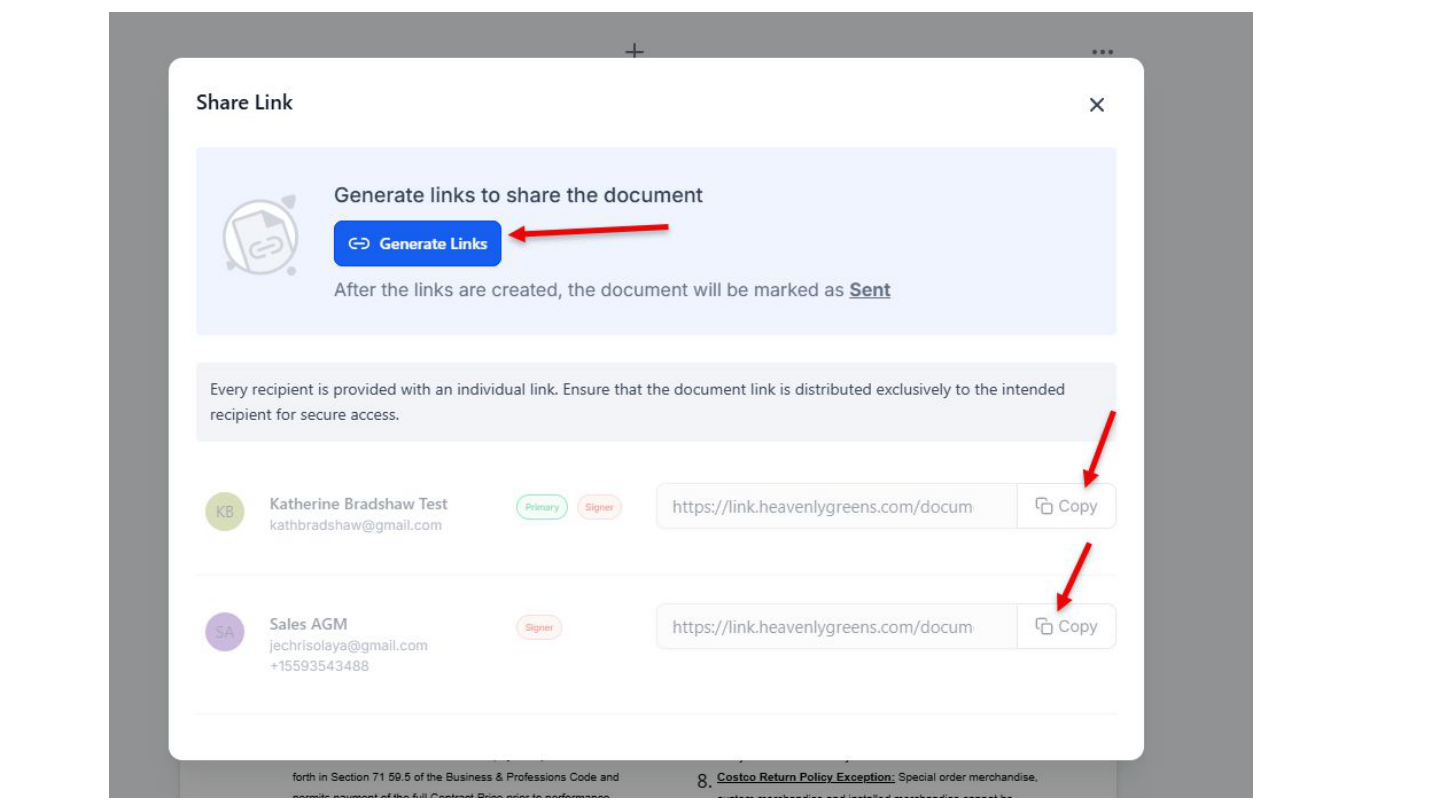
Option B: In-Person Signing Links

Choose this when you're sitting with the member. Generate two links:

  • Member link — copy and open in a new tab for them to sign
  • Sales rep link — copy and open in a new tab for you to sign after
In-person signing links instructions
Signing links detail

Step 5: Member Signs, Then You Sign

Always member first. You sign after.

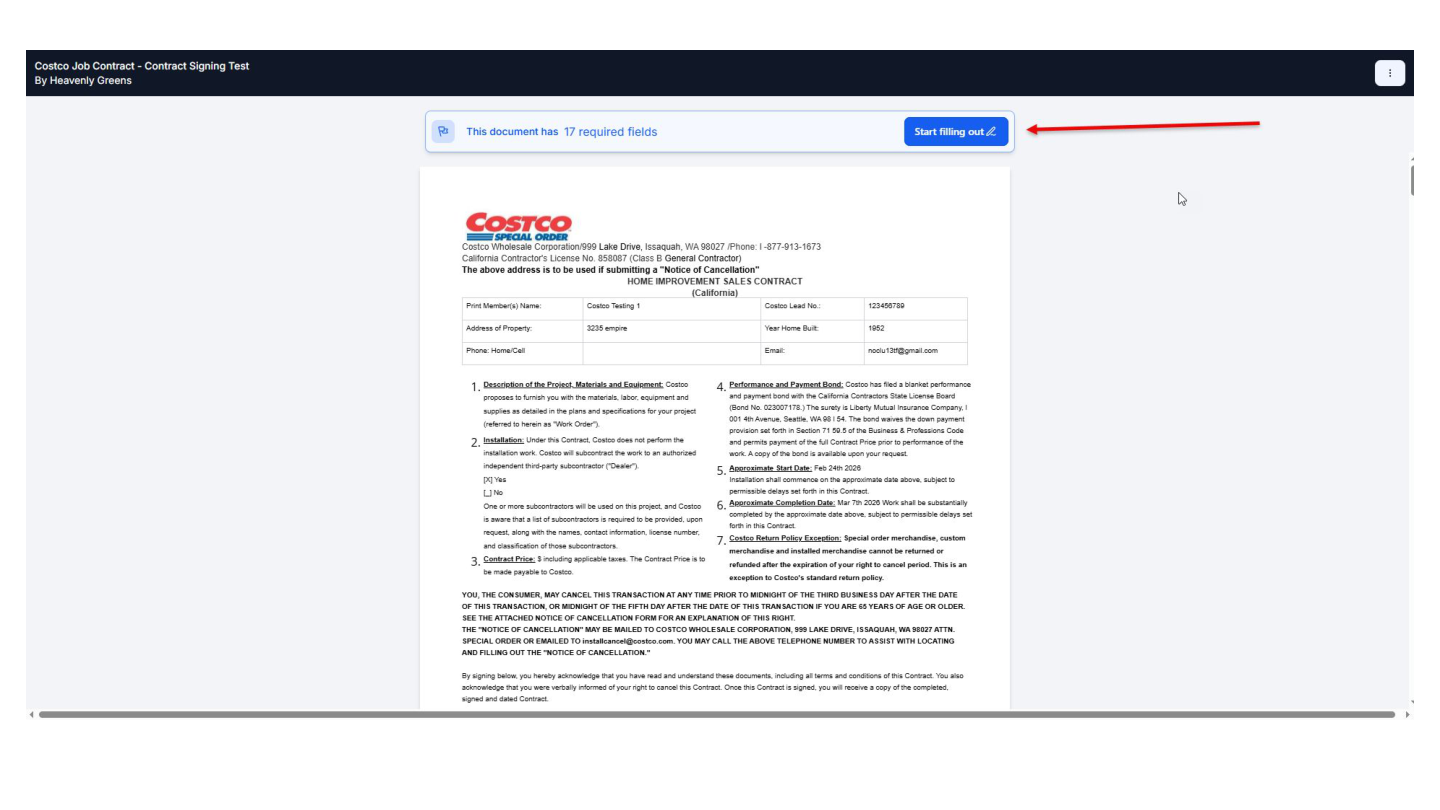
Member signs first

The member opens the link or email and reviews the contract. Always have them sign first — if they catch something, you can fix it before you've already signed.

Member signing instruction
Member signing view

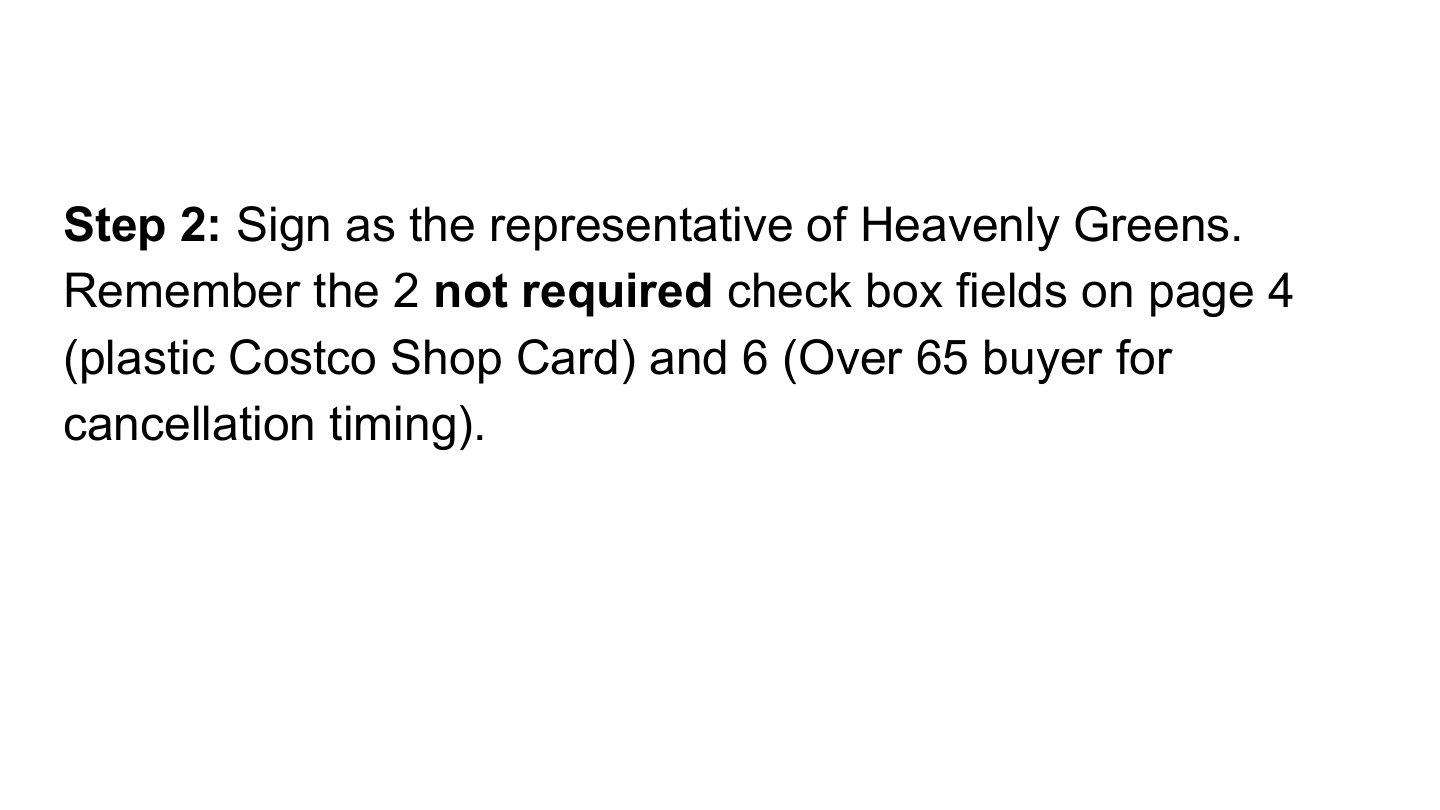
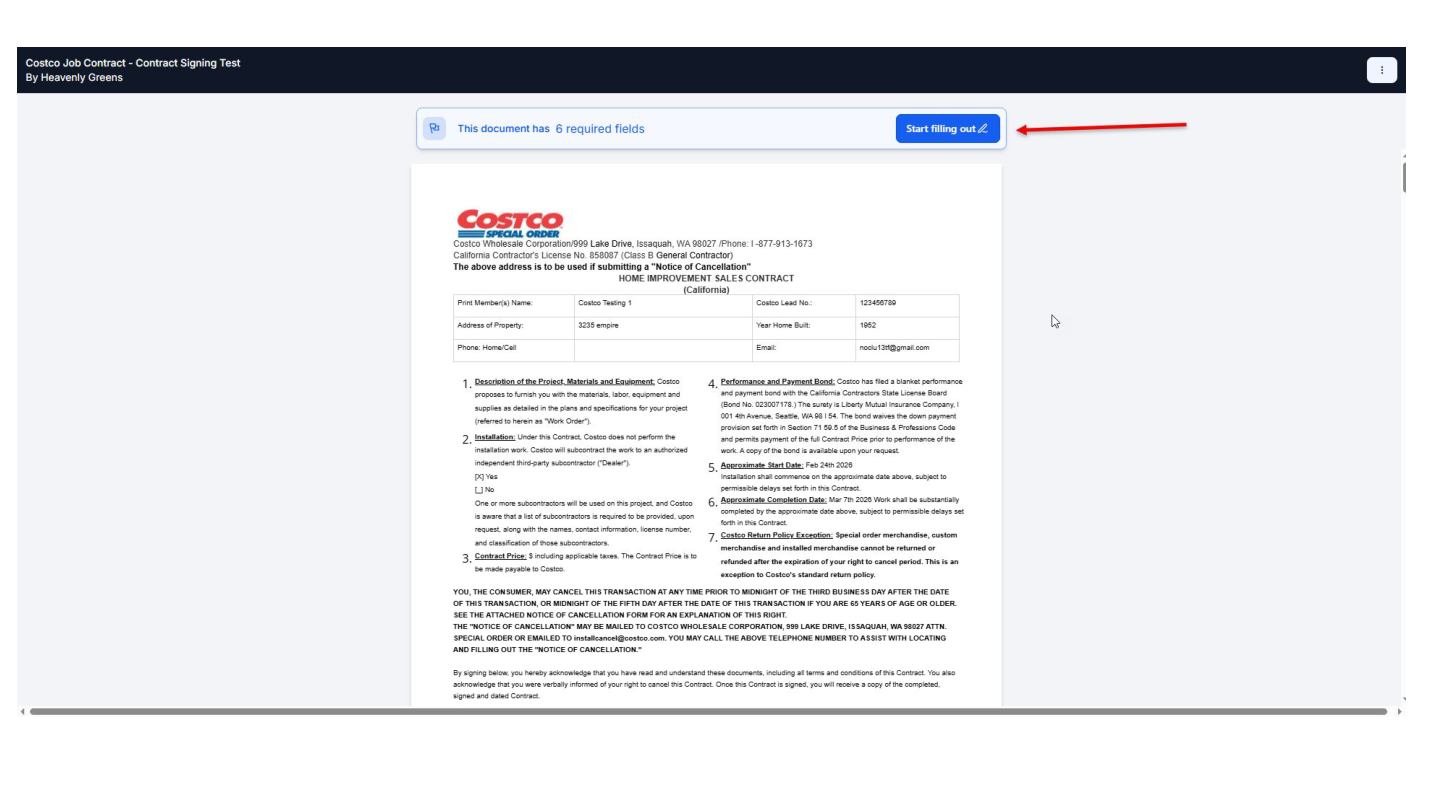
You sign as the Heavenly Greens representative

After the member signs, you'll be notified by email and SMS. Open your link and sign.

Don't forget the optional checkboxes:
Page 4 — Plastic Costco Shop Card: Check if the member is receiving the physical Shop Card (the 10% Shaw turf reward). If they've opted for the digital reward, leave it unchecked.
Page 6 — Over 65 buyer: California law mandates a 5-business-day cancellation window for buyers 65 or older (vs. 3 days for under 65). If the member is 65+, this box must be checked.
If you don't sign within a day: The system will nudge you. Email + SMS reminder at the 1-hour mark, again at 24 hours, again at 32 hours. At 48 hours unsigned, the office gets a Slack alert. Don't let it get there.
Rep signing instruction
Rep signing view

Step 6: Confirm Completion

Don't walk away until you've verified everything landed.

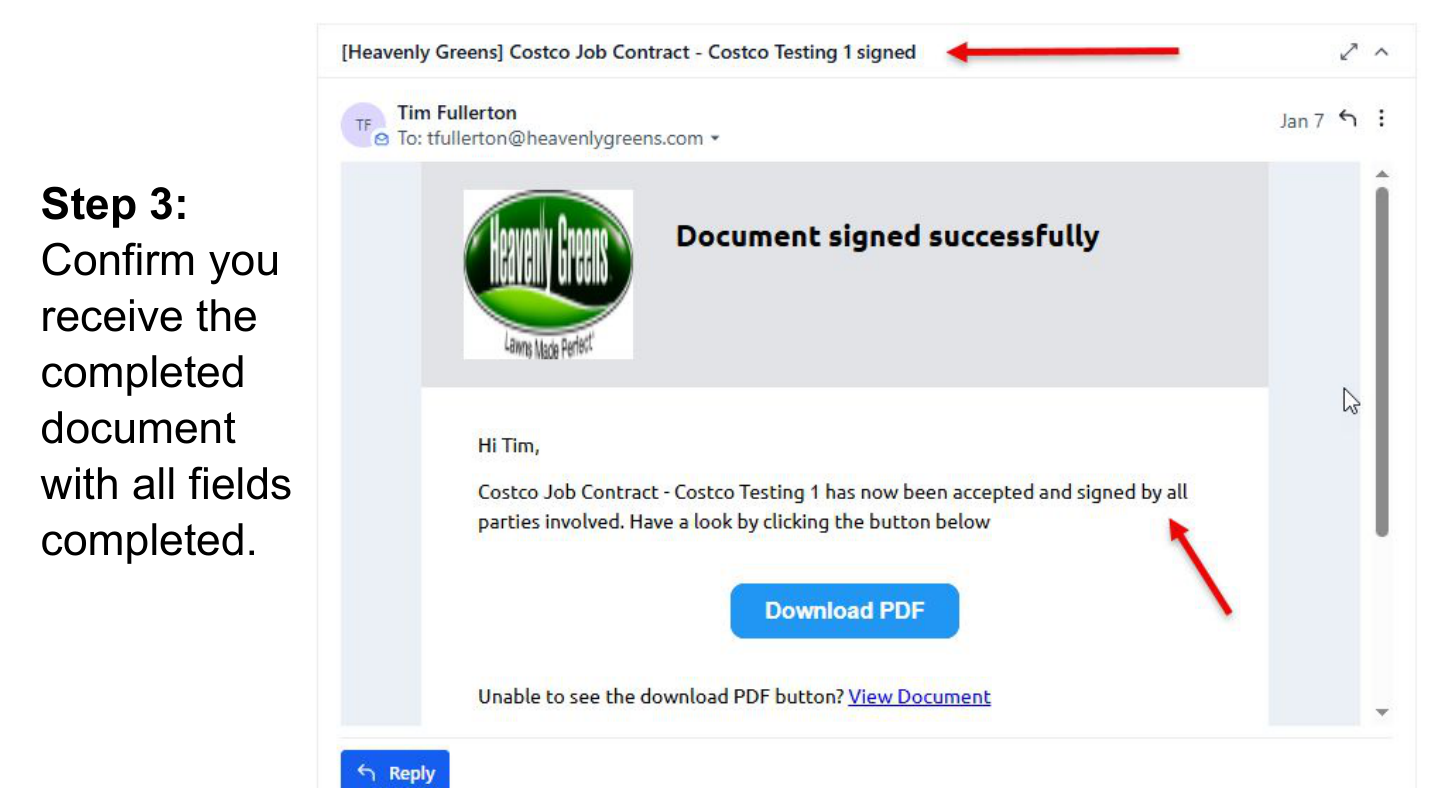
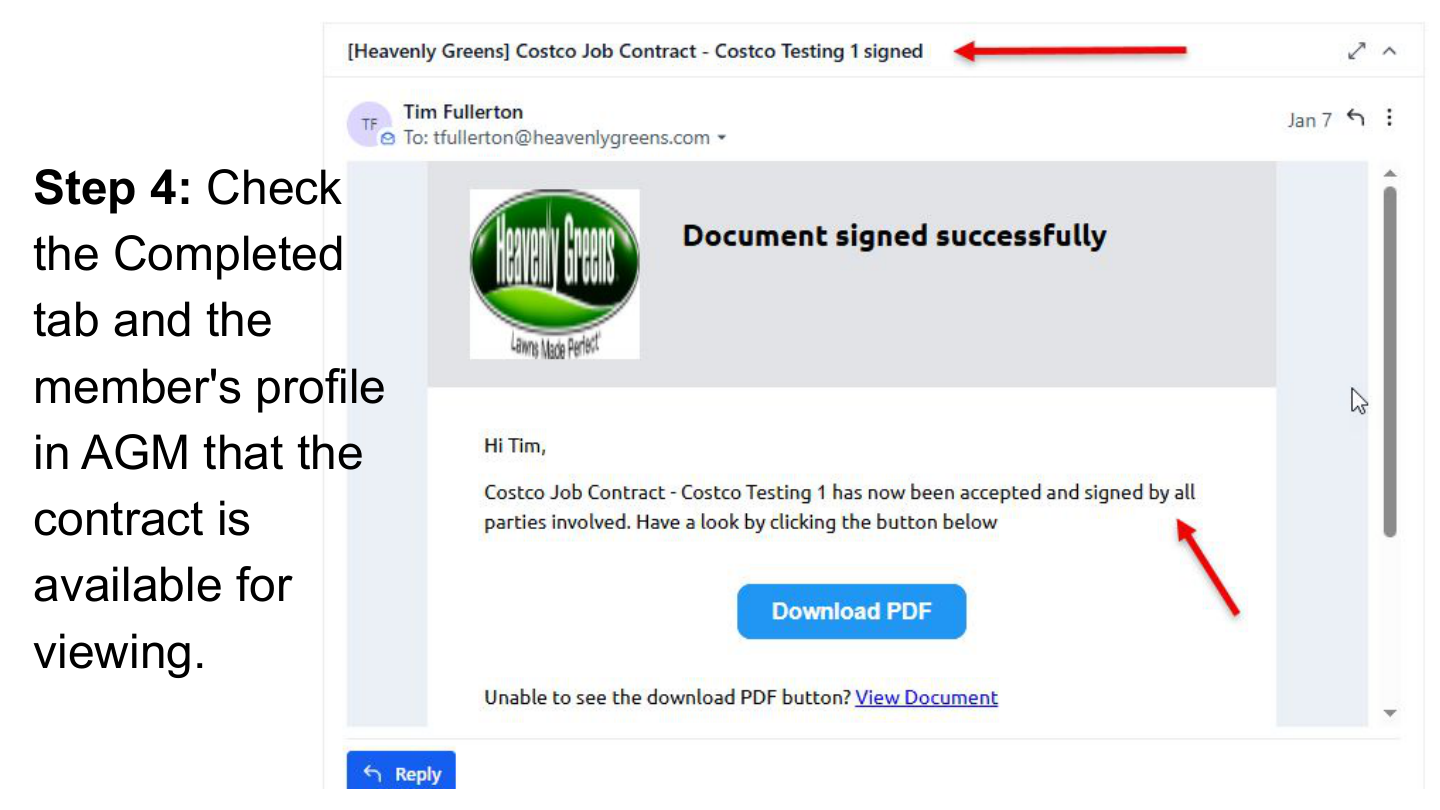
Confirm the completed document

Verify you received the completed document with all fields filled. No blanks, no placeholders.

Confirm completed document

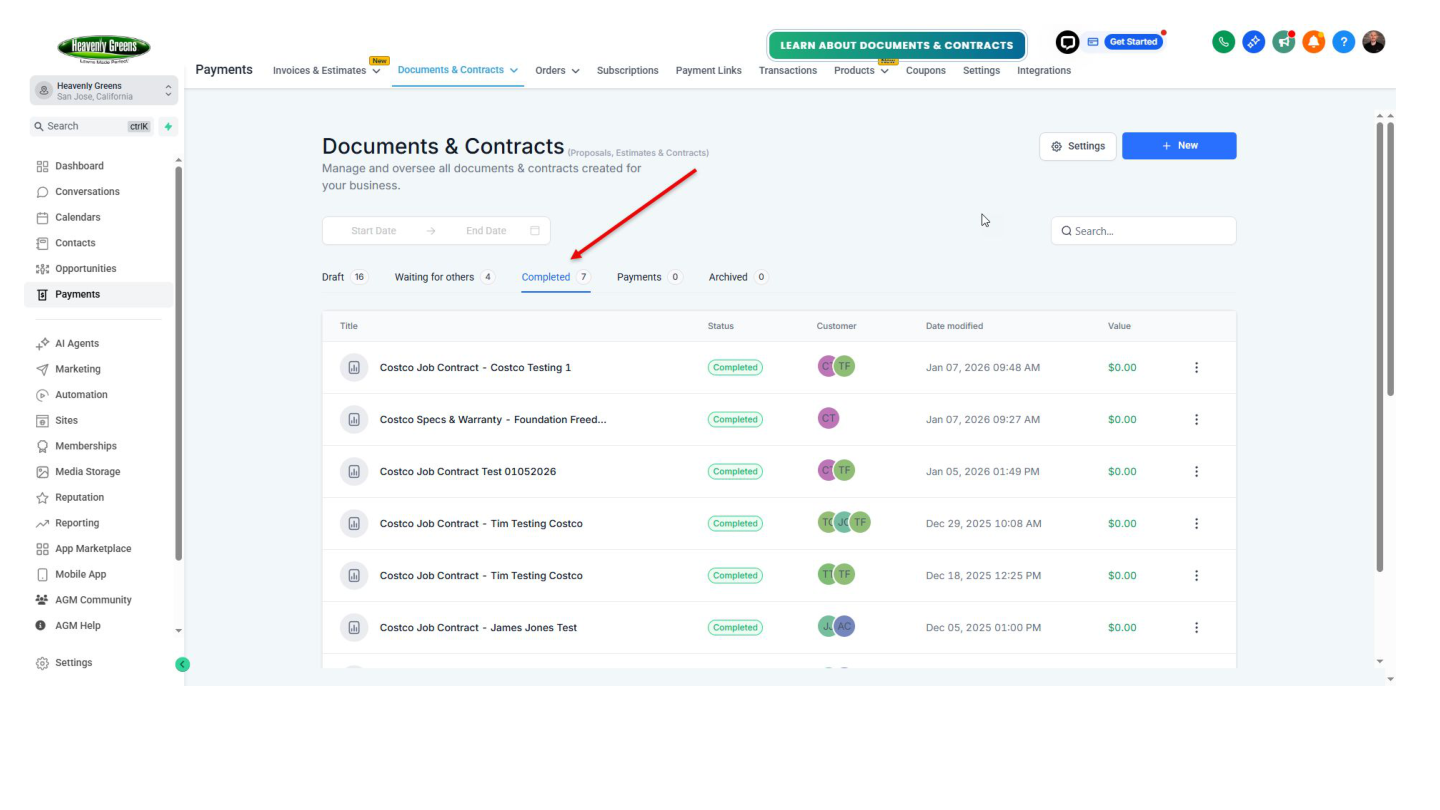
Check the Completed tab

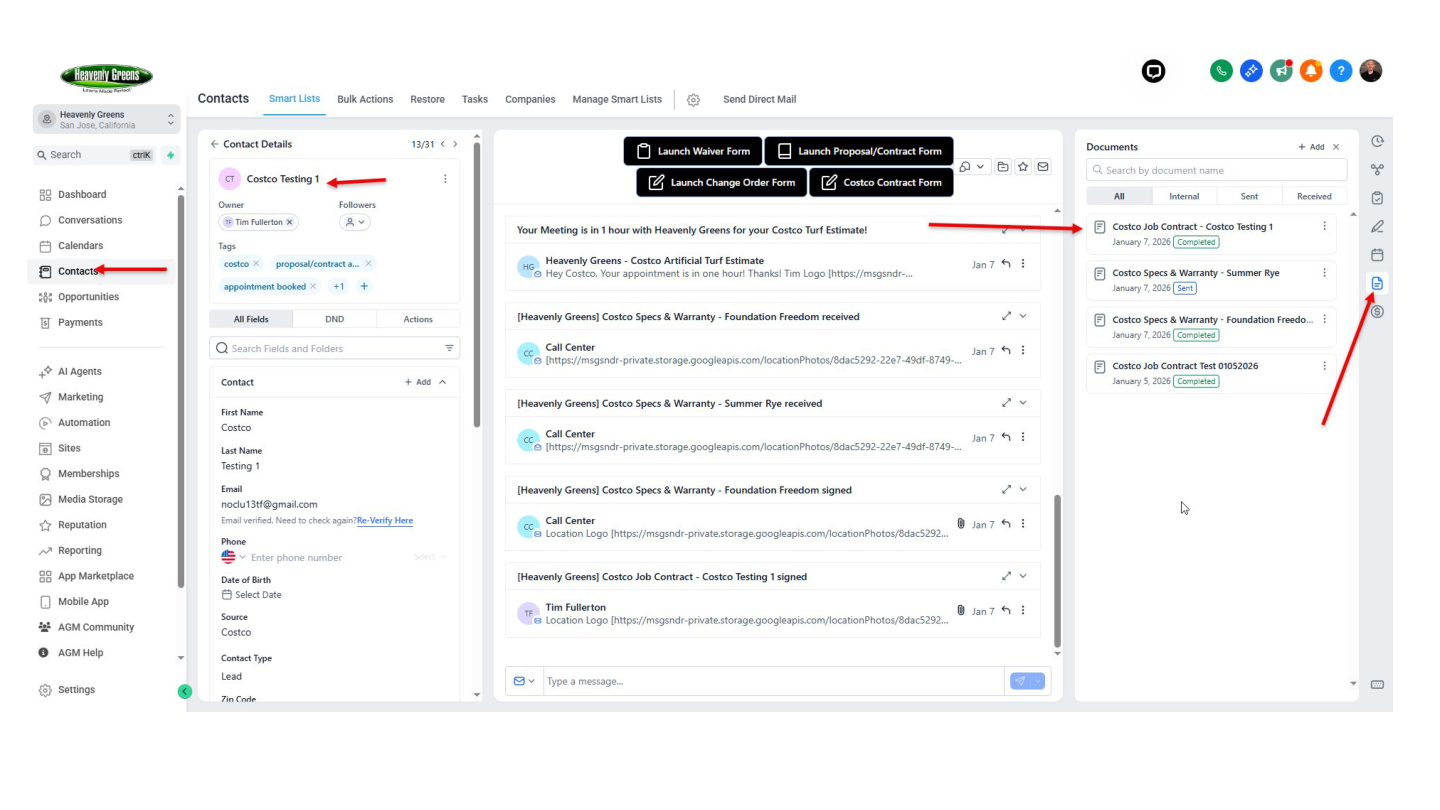
Go to the Completed tab in AGM and confirm the contract is there. Also check the member's profile to make sure it's visible.

Check Completed tab
Completed tab detail
Member profile contract view
Contract in member profile

Editing Contact Fields

Need to fix member info before or after the contract? Here's how.

Two ways to edit

You can edit contact fields from either the Contacts menu or the Conversations screen. All updates are saved automatically.

Editing contacts overview

Via Contacts: Find the member

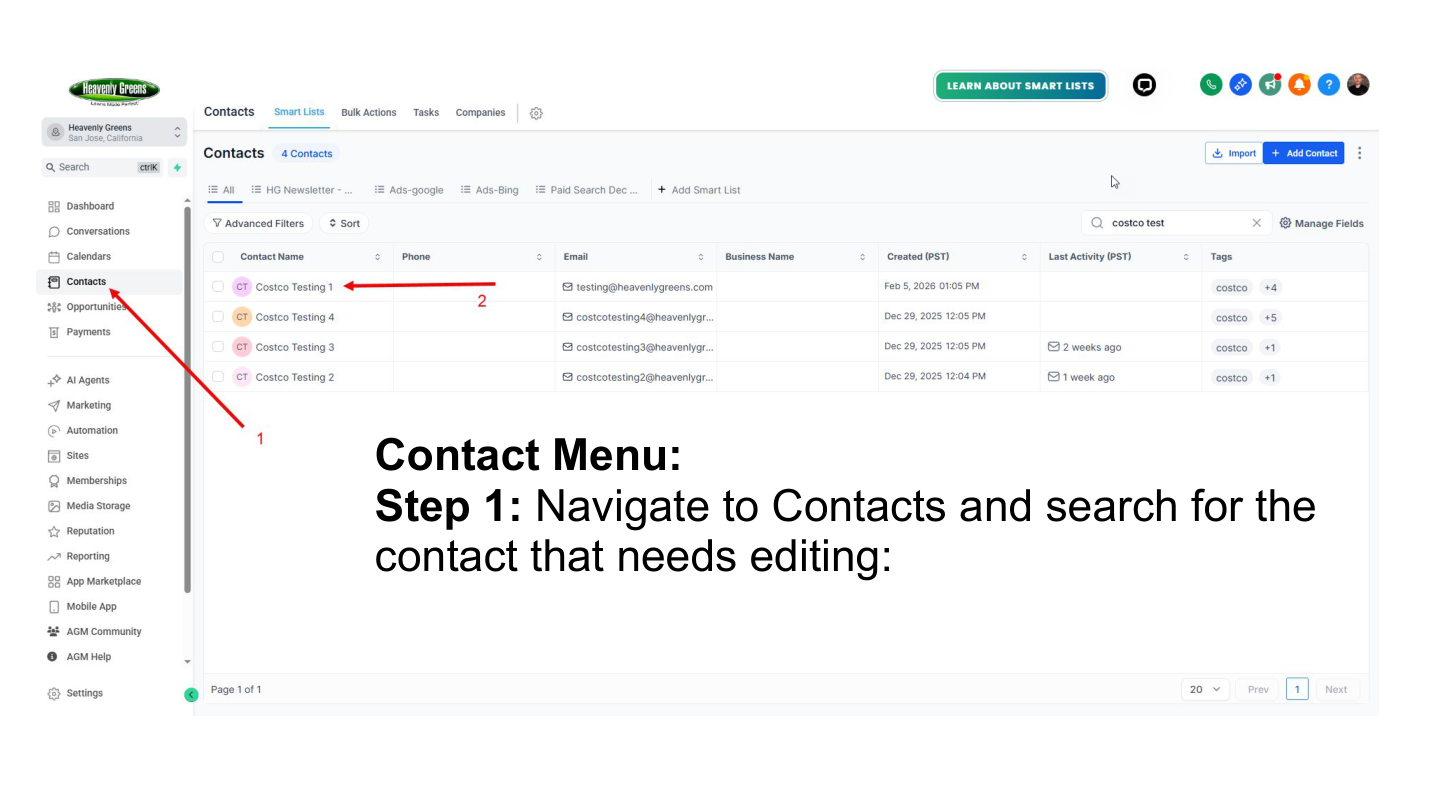
Navigate to Contacts and search for the contact that needs editing.

Search for contact in Contacts menu

Via Contacts: Edit the fields

Click the field you need to update. You can search for specific fields or hide empty/filled fields to find what you need faster.
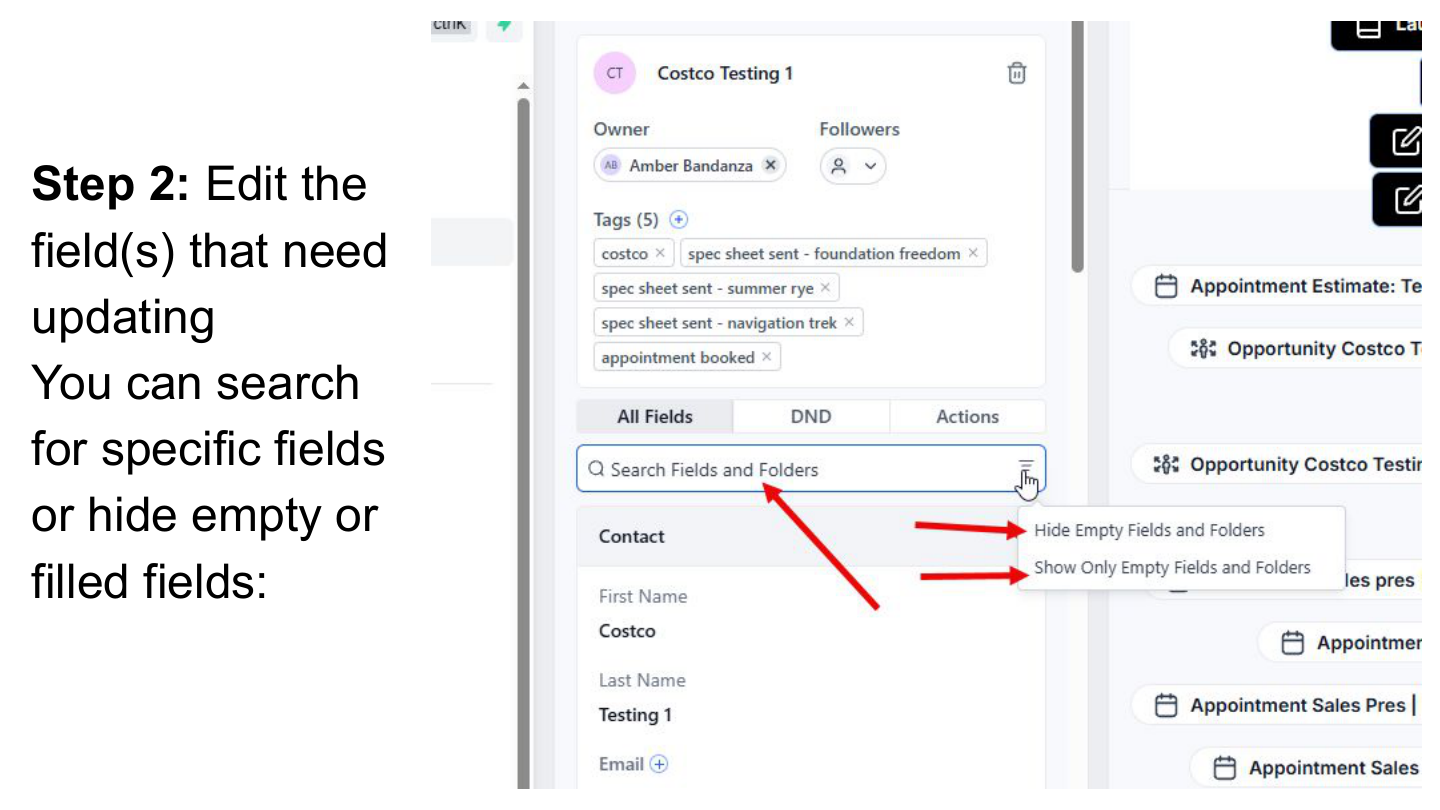
Edit contact fields

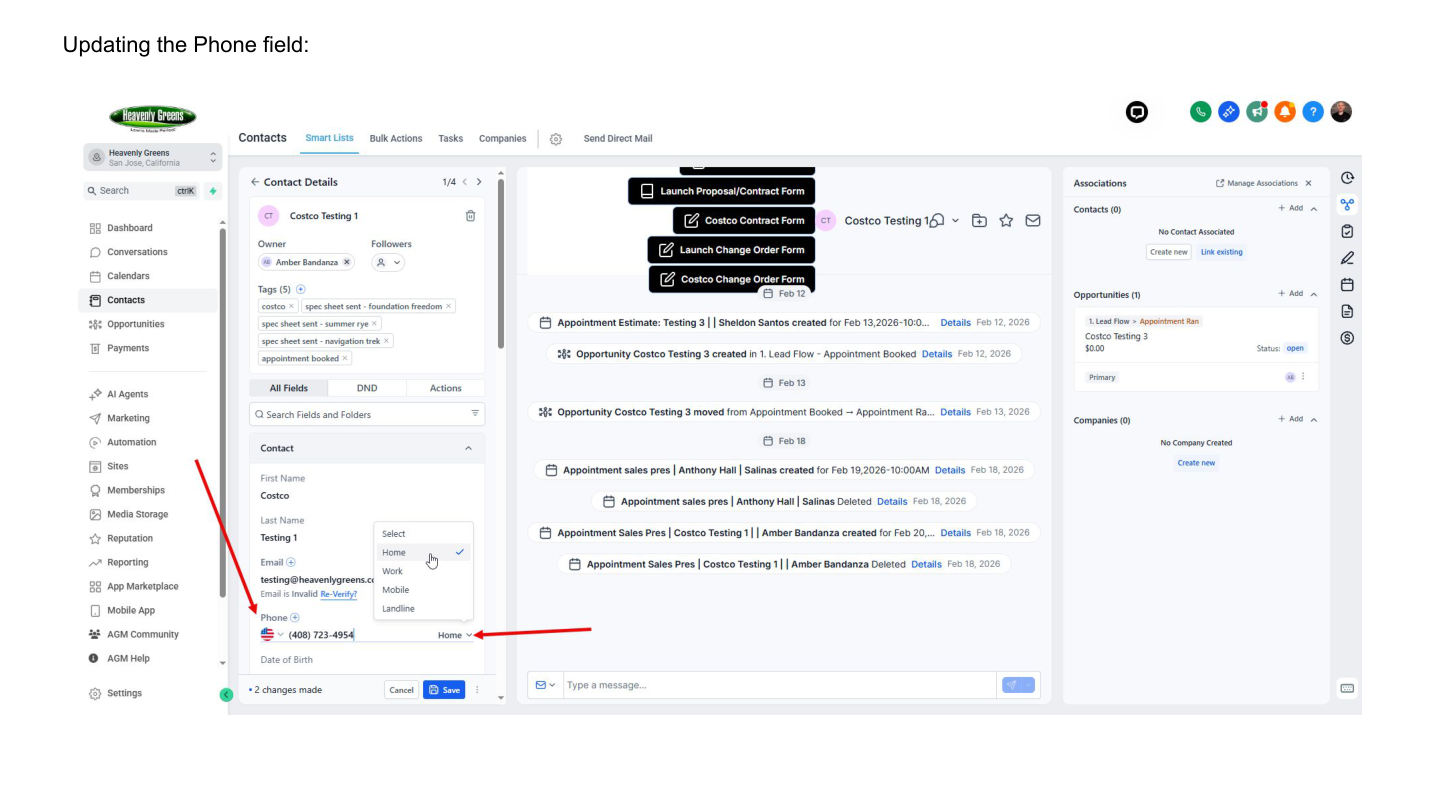
Updating the Phone field

Updating phone field

Updating the Address fields

Updating address fields

Via Conversations: Find the contact

Navigate to Conversations and find the member's conversation thread.

Find contact in Conversations
Conversation view

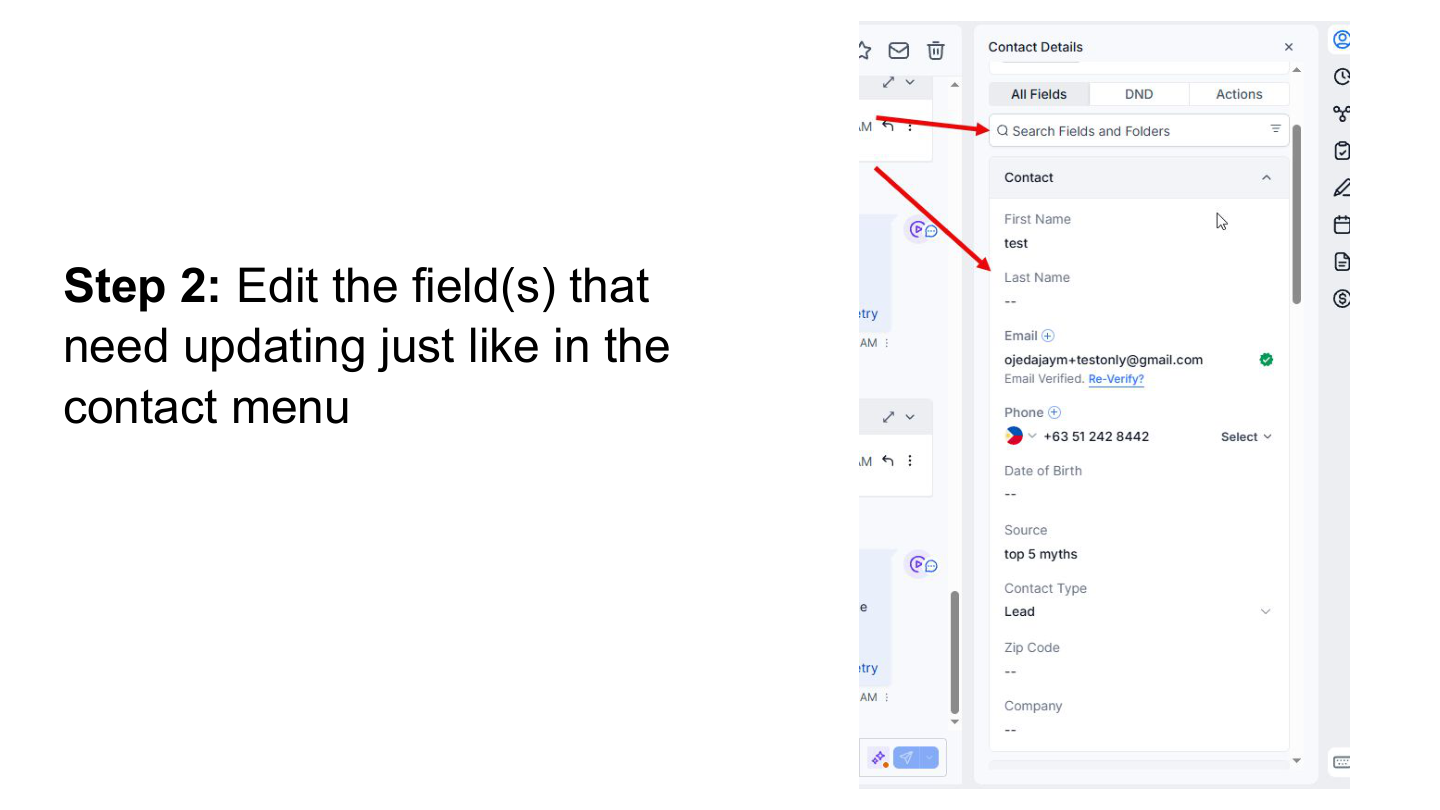
Via Conversations: Edit the fields

Edit fields the same way as in the Contacts menu. Changes auto-save.

Edit fields in Conversations

After the Contract

The contract is signed. Here's what comes next.

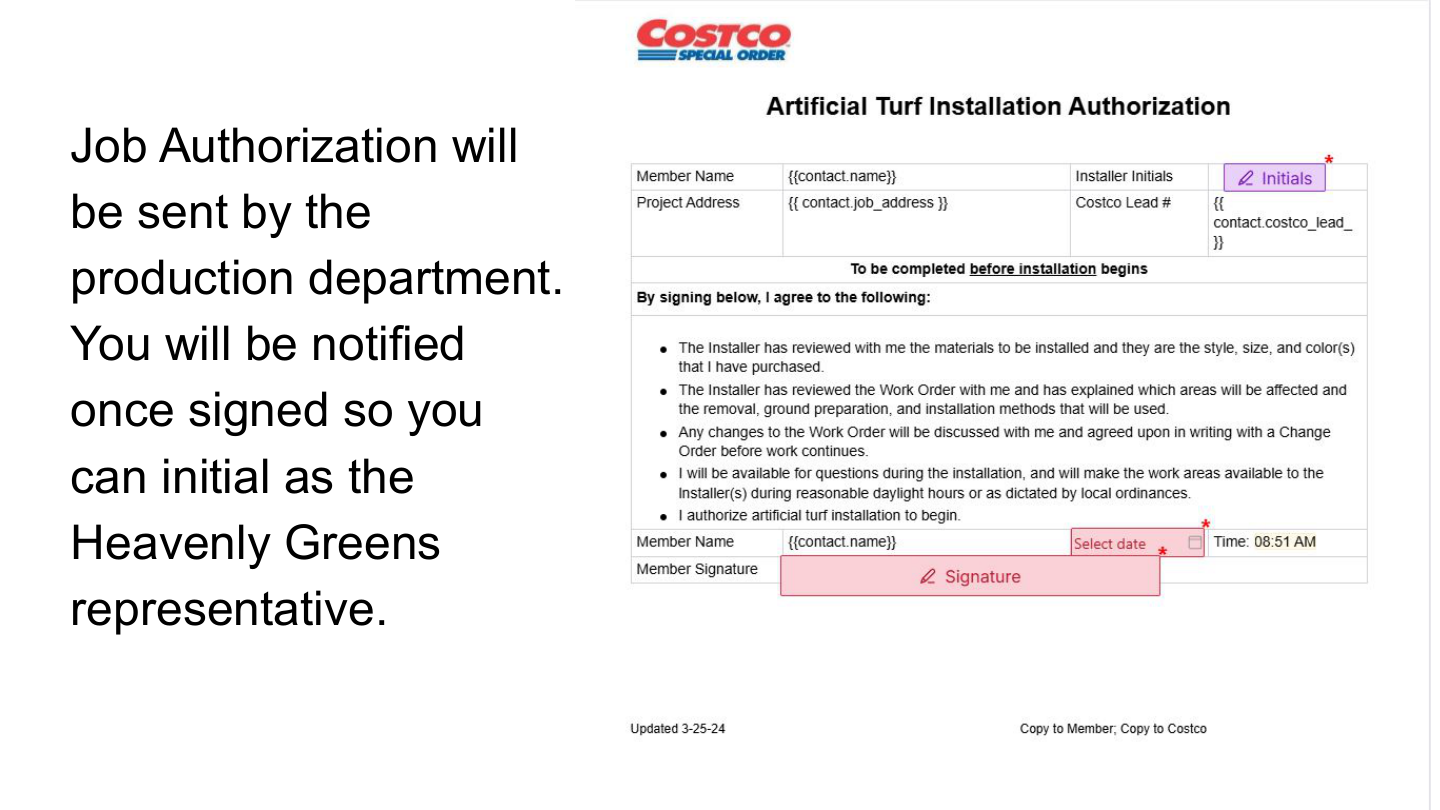
Job Authorization

The production department sends this. You'll be notified once the member has signed it. Your action: initial it as the Heavenly Greens representative.

Job Authorization document

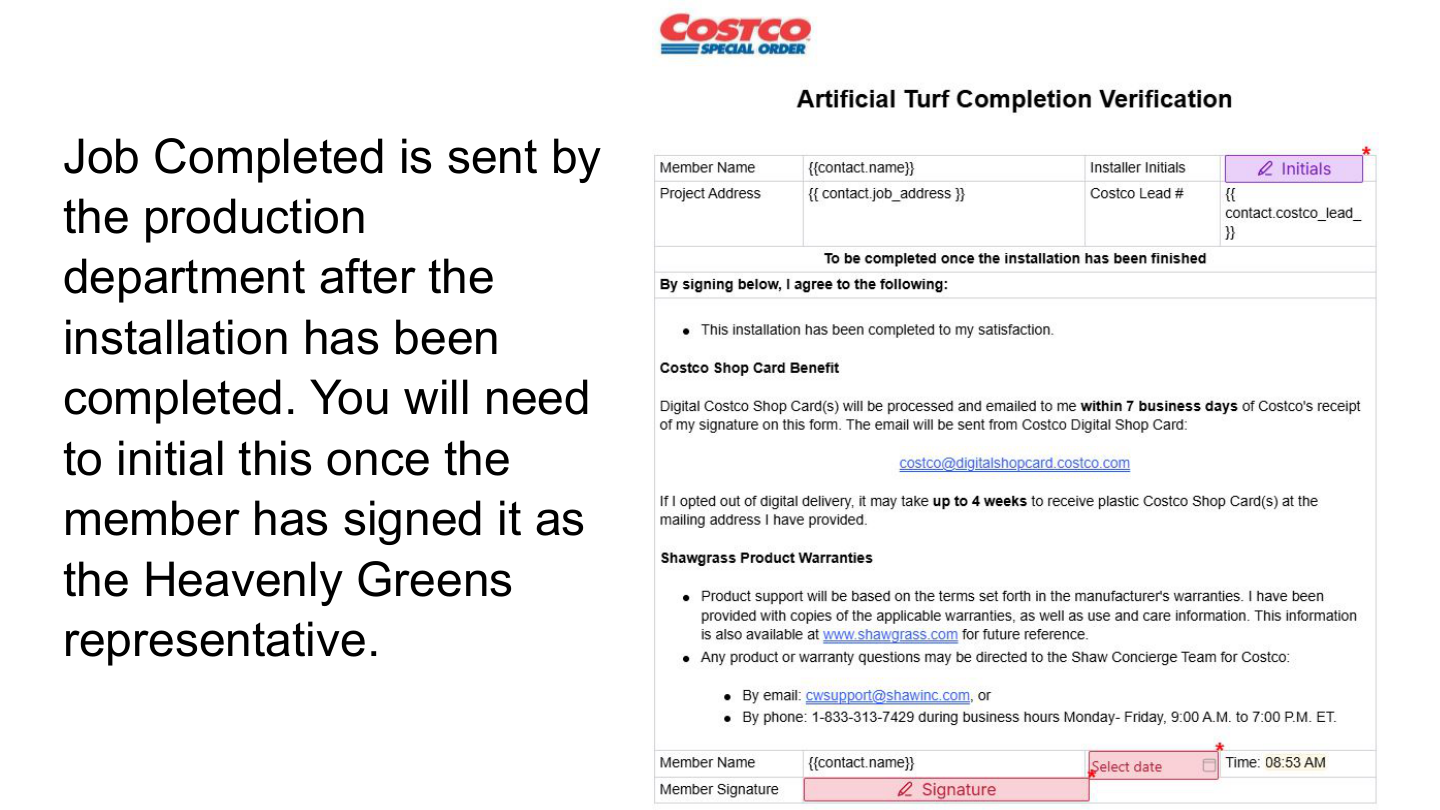
Job Completed Verification

Sent by the production department after the installation is finished. The member signs it, then you initial it as the Heavenly Greens representative.

Job Completed document

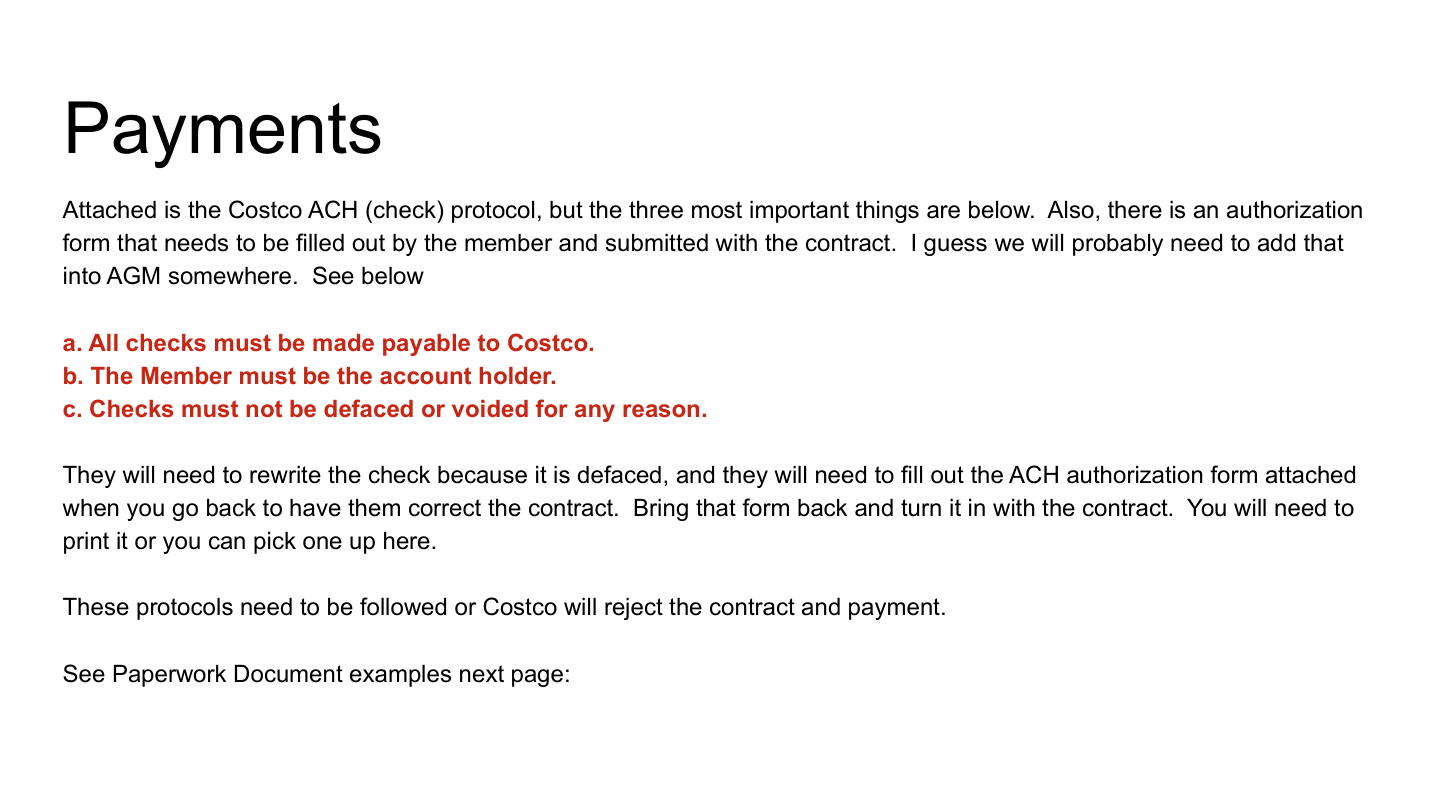
Payments — Costco ACH Protocol

Three rules that Costco will reject the contract over if not followed:

  • All checks must be made payable to Costco
  • The Member must be the account holder
  • Checks must not be defaced or voided for any reason
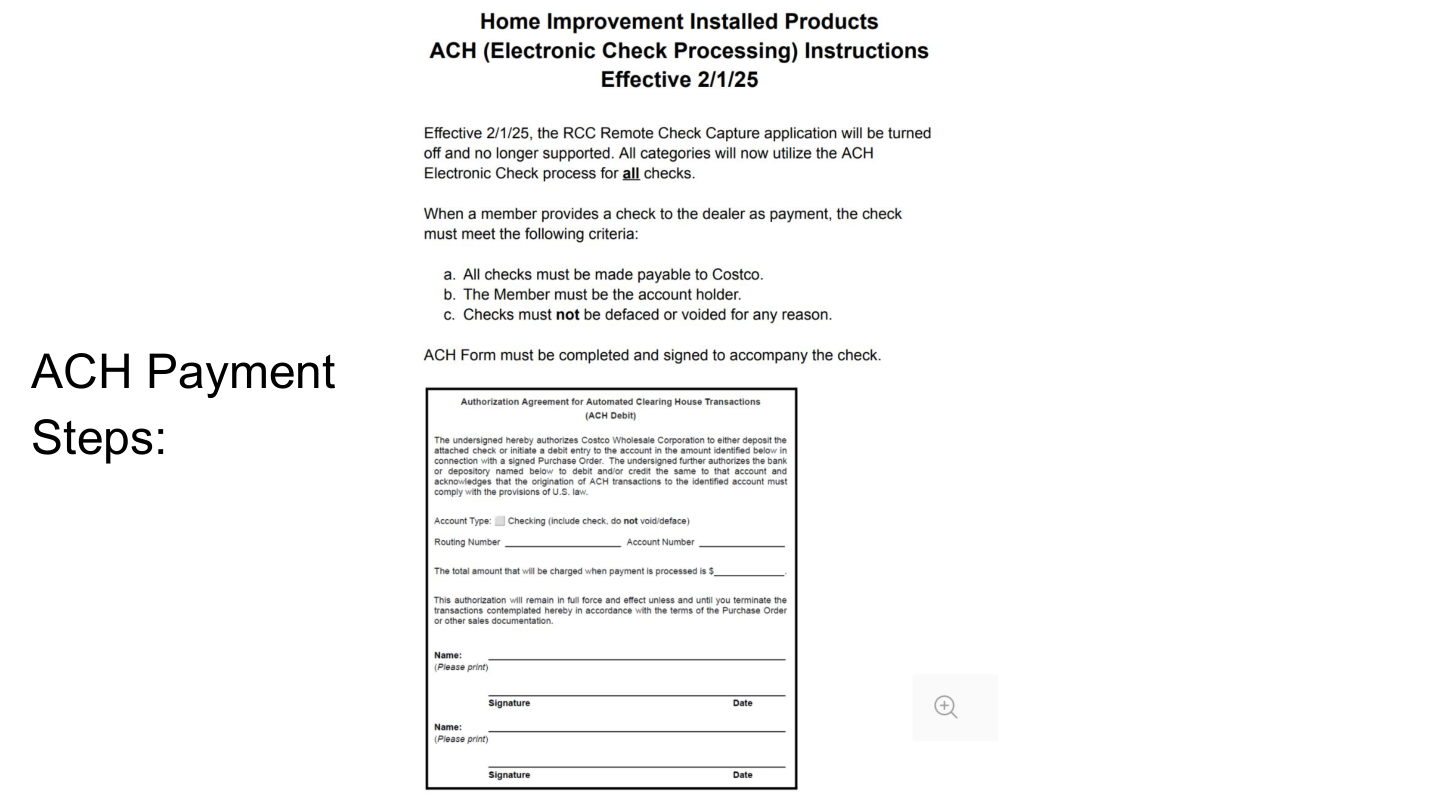
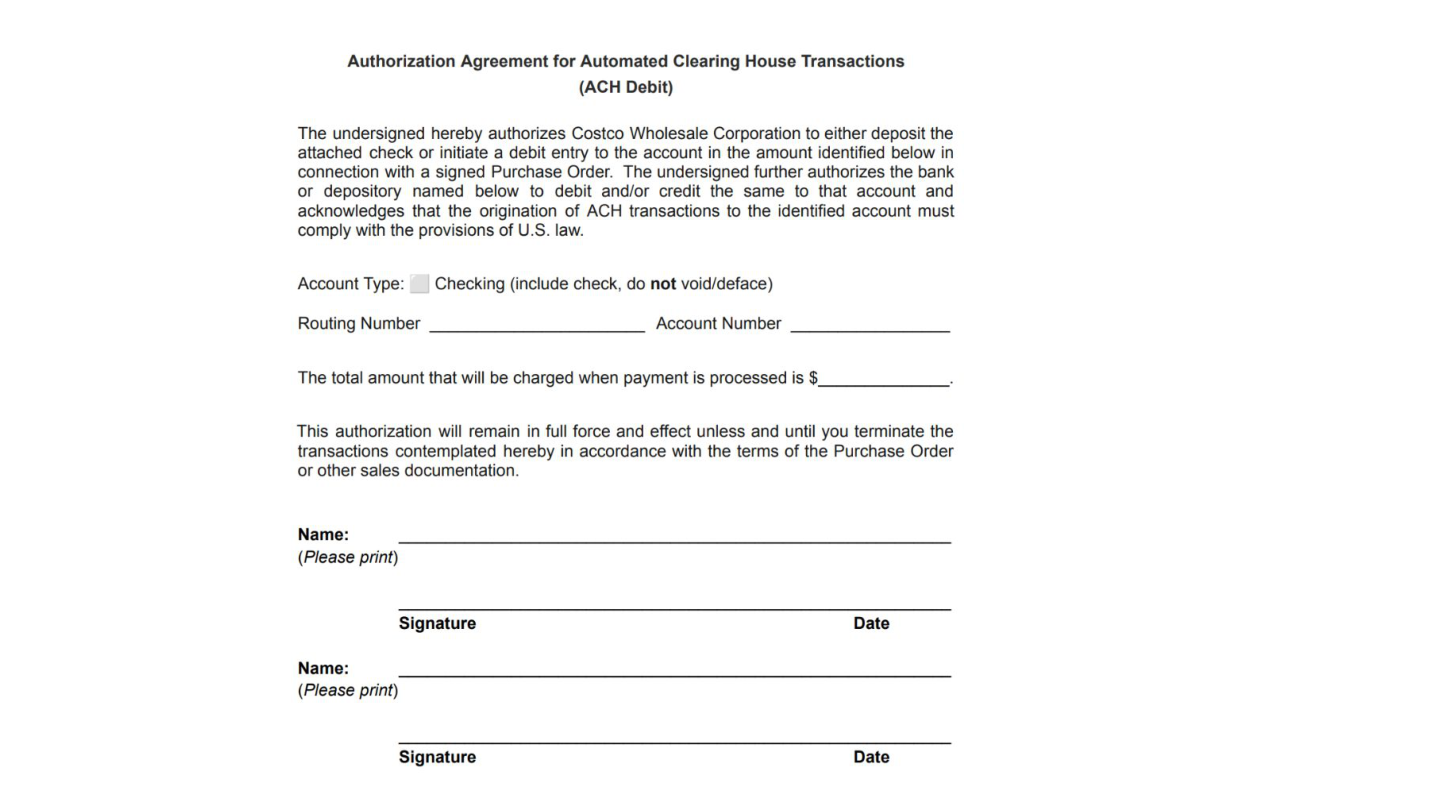
If a check is defaced: The member must rewrite the check AND fill out the ACH authorization form. Bring that form back with the corrected contract. You can print the form or pick one up at the office.
Payment protocols

ACH Payment Steps

ACH payment form and steps
Payment documentation example

Change Orders

When the scope changes after the contract is signed.

When to create a Change Order

The member has signed, but something changed: they want more turf, different edging, an extra removal area, a sprinkler tweak. Don't void the original contract. Create a Change Order instead.

  • Open the member's Contact record
  • Click "Create Change Order" (sits next to the original Contract Form button)
  • Fill in only what's changing — new line items, modified quantities, removed items
  • Add a brief reason in the notes field
  • Submit

What the member sees

The Change Order PDF shows:

  • Original contract amount (read-only header)
  • Any prior change orders on this job (cumulative)
  • The new change order items and the new total

Same signing flow as the original — member signs first, you countersign. Same job number (HGC-XXXXX) carries through; each CO gets its own version (v2, v3, etc.).

If the change order swaps the turf product itself (different Shaw SKU), a fresh Specs & Warranty sheet auto-regenerates. If it's edging, base, or removal only, the original specs stand.

If Something Goes Wrong

Common issues and how to fix them.

You submitted the form but nothing happened

If a required field was missing or invalid, the system will text and email you within seconds explaining what's wrong (e.g., "Missing membership number. Please update the contact and resubmit."). Fix the contact field, then resubmit the form — the same job number is reused.
The member's contract didn't send

Two common causes:

  • Contact isn't assigned to you — the system needs an active rep email to send from. Reassign the contact to yourself.
  • Your email on the contact is wrong or decommissioned — the office will see a Slack alert. Check with the office to confirm your AGM user record is right.

Member says they didn't get the link

Check the contact's Conversations tab. The email and SMS will show in their timeline. If the member's email address is wrong, fix it in the contact, then click "Resend" on the contract. If the SMS bounced (bad number), update the phone and resend.

You can always copy the in-person signing link and text it to them directly as a backup.

Member signed but I haven't been notified

You should get an email + SMS within seconds of the member signing. If you haven't seen it after 5 minutes, check the contact timeline — the system narrates every step there. If the timeline shows "Member signed" but you weren't notified, your contact info on the rep record may be stale.

The member spotted a typo after signing

Small typos (address spelling, name punctuation): fix the contact record, contact the office to log the correction. The signed PDF stands.

Material errors (wrong price, wrong product, missing line item): you'll need to withdraw and reissue. Tell the office immediately — they can void the current signing session and you start over from the form. Do not just create a Change Order to "fix" a contract error; that's only for genuine scope changes the member is agreeing to.

I made a mistake on the contract before sending it

Easy fix. On the draft review step, click "Reject" instead of approving. The session resets to draft. Fix the contact fields in AGM, resubmit the form, review the new draft. Same job number throughout.

Still stuck?

Call the office. The system logs every step of every contract — if something is genuinely broken, they can see it in real time and tell you exactly what's happening.

Your Cheat Sheet — The Whole Process on One Page

  1. Pre-Flight — Contact has Lead #, Membership #, HIS #, and 65+ status filled in
  2. Open Form — Contacts or Conversations, click "Costco Contract Form"
  3. Fill It Out — Products, quantities, member info → Submit (job number minted: HGC-XXXXX)
  4. Verify & Draft — Check data, click "Ready to Draft Contract"
  5. Review Draft — Rename it, check all fields, set signing order (member first), check Work Order (pg 12) → Save
  6. Send — Blue "Send" button → Email/SMS (remote) or signing links (in person)
  7. Member Signs First — Watch for Page 4 (Shop Card) and Page 6 (Over 65) checkboxes
  8. You Sign — Within 24 hours — system reminders start at 1h, escalate at 48h
  9. Confirm — Completed tab + member profile — contract visible in both
Pre-Flight → Form → Fill → Verify → Review → Send → Member Signs → You Sign → Confirm
Heavenly Greens — Costco Contract Guide — Sales Rep Reference